
Add staff and give them roles
- Admin and clinic owner
Short answer
In Clinizy Care, open Staff Management and press Add Staff. Enter the person’s name, mobile number and role, then save. Clinizy Care sends them a WhatsApp welcome and shows, live, whether it arrived. The welcome has no password, so copy the temporary password and share it with them. Edit, reset or deactivate staff on the same page.
Before you start
- Have the person’s full name and mobile number ready. Use the number they have WhatsApp on.
- Know the role they will have, such as Receptionist or Nurse.
- For a doctor, have the speciality and registration number ready.
Steps
Open Staff Management from the left menu, then press Add Staff.
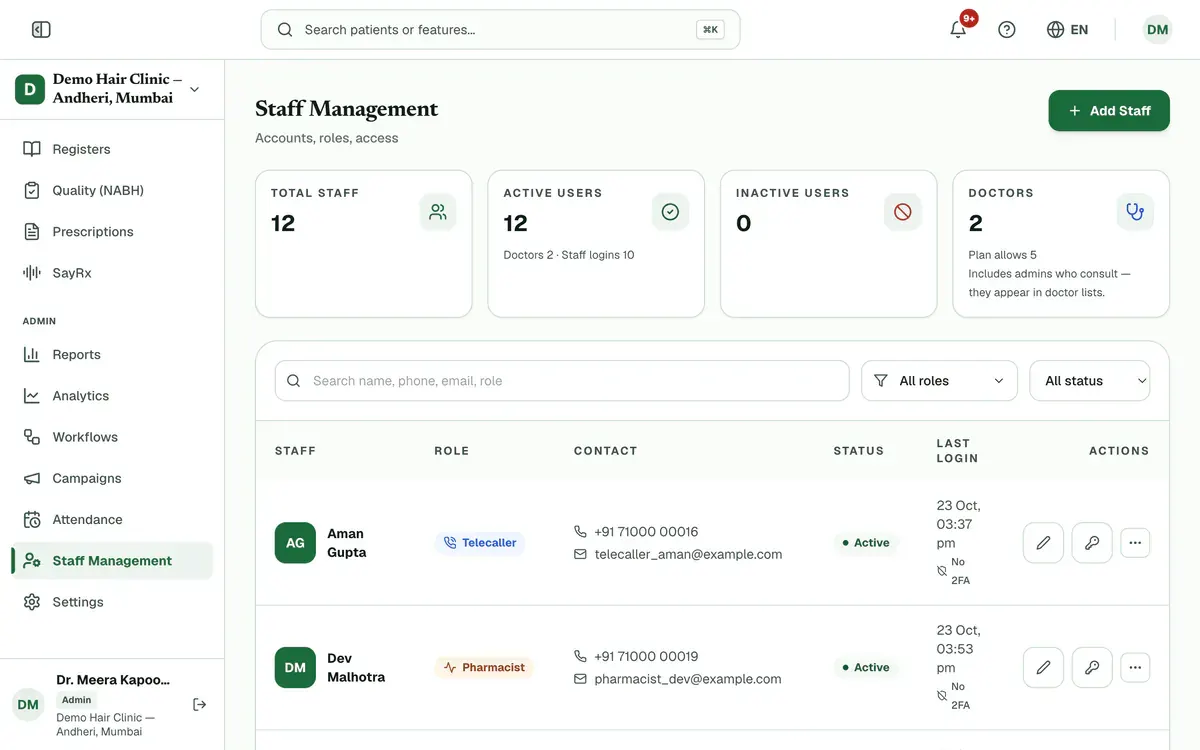
Step 1 of 8 Tip:The Doctors tile shows how many doctors your plan allows.
Enter their Full name and Mobile number. Add their email too if they have one.
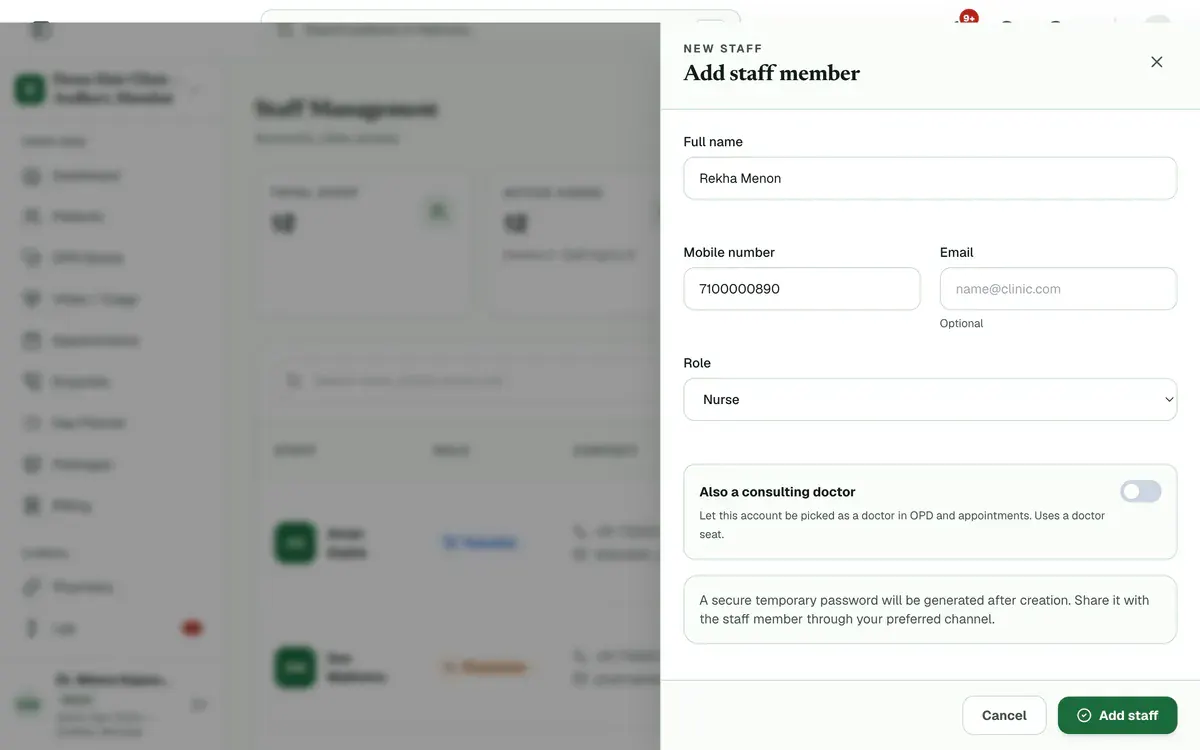
Step 2 of 8 Tip:Use a 10-digit mobile number. With an email, they also get a link to set their own password. The link works once, for 3 days.
Choose the Role for this person.
Tip:Roles that your plan does not support are not listed.
Add the speciality, registration number, qualification and fees if the person is a doctor.
Pick Weekly hours or Weekly hours, only while clocked in for a doctor or technician.
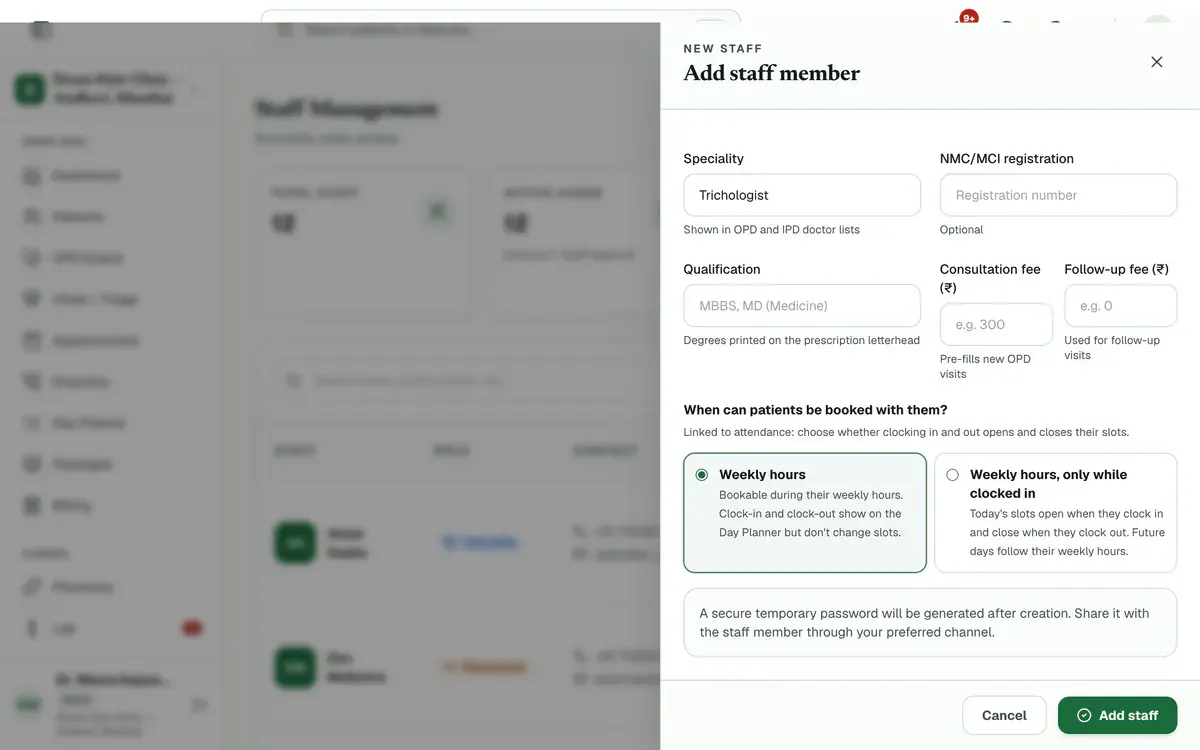
Step 5 of 8 Tip:With the second choice, today’s slots open when they clock in and close when they clock out. Only people who take appointments get this choice.
Press Add staff. Clinizy Care sends them a WhatsApp welcome and shows, live, whether it was sent, delivered or read.
Tip:For a new doctor, press Set working hours in the message that pops up to set their weekly hours.
Copy the temporary password and share it, or press Send on WhatsApp. Then press Done.
Tip:Send on WhatsApp opens WhatsApp on your own phone or computer, with the message ready to send.
Careful:The WhatsApp welcome never contains the password. The password is shown only once, so copy it before you close the box.
Find someone with the search box or the filters. Use their row to edit or Reset password. Open ⋯ to deactivate them.
Tip:Invited means the person has not signed in yet.
Careful:A deactivated person is signed out and cannot sign in. Their past records stay.
If something goes wrong
What does a new staff member receive?
A WhatsApp welcome with your clinic name, their role, their registered number and the sign-in link. It never contains a password. If you added an email, they also get a link to set their own password.
What if the WhatsApp welcome did not arrive?
Share the temporary password with them yourself. The box says why, such as a number that is not on WhatsApp. Correct the number, then press Send invite again in the ⋯ menu. A phone that is off gets it later.
What if someone forgets their password?
They can use the forgot-password link on the sign-in page and get a 6-digit code on WhatsApp. You can also press Reset password on their row and share the new temporary password.
Why can I not add another doctor?
Your plan allows a set number of doctors. The Doctors tile shows the limit. Deactivate a doctor or buy a seat in Add-ons.
Related guides
Choose what each role can see
Open Settings and press Roles & permissions. Pick a role, then switch each permission on or off. The What this role will see panel shows the menu that role will get before you save. Press Save changes and confirm. Signed-in staff get the change within a few minutes, with no new login needed.
4 minIncluded in Clinic and aboveManage attendance and shifts
Open Attendance and create your shifts first. Then give each person a weekly pattern in Roster, check and correct each day in Register, and approve or reject requests in Leave Approvals. Use Summary for monthly totals and a CSV file.
5 minIncluded in Clinic and aboveChange the language
Press the globe button in the top bar. On a phone, press More and use the Language row instead. Choose English, Hinglish or हिन्दी. The menus and buttons change straight away. Your choice is saved in that browser only, so repeat it on any other device you use.
2 minIncluded in Clinic and above
Was this guide helpful?
Last updated 26 Oct 2026By the Clinizy Care product team