
Choose what each role can see
- Admin and clinic owner
Short answer
In Clinizy Care, open Settings and press Roles & permissions. Pick a role, then switch each permission on or off. The What this role will see panel shows the menu that role will get before you save. Press Save changes and confirm. Signed-in staff get the change within a few minutes, with no new login needed.
Before you start
- Know which role you want to change, such as Receptionist.
- Remember that a change applies to everyone with that role.
Steps
Open Settings, then press Roles & permissions.
Pick a role. Everyone with that role gets your changes.
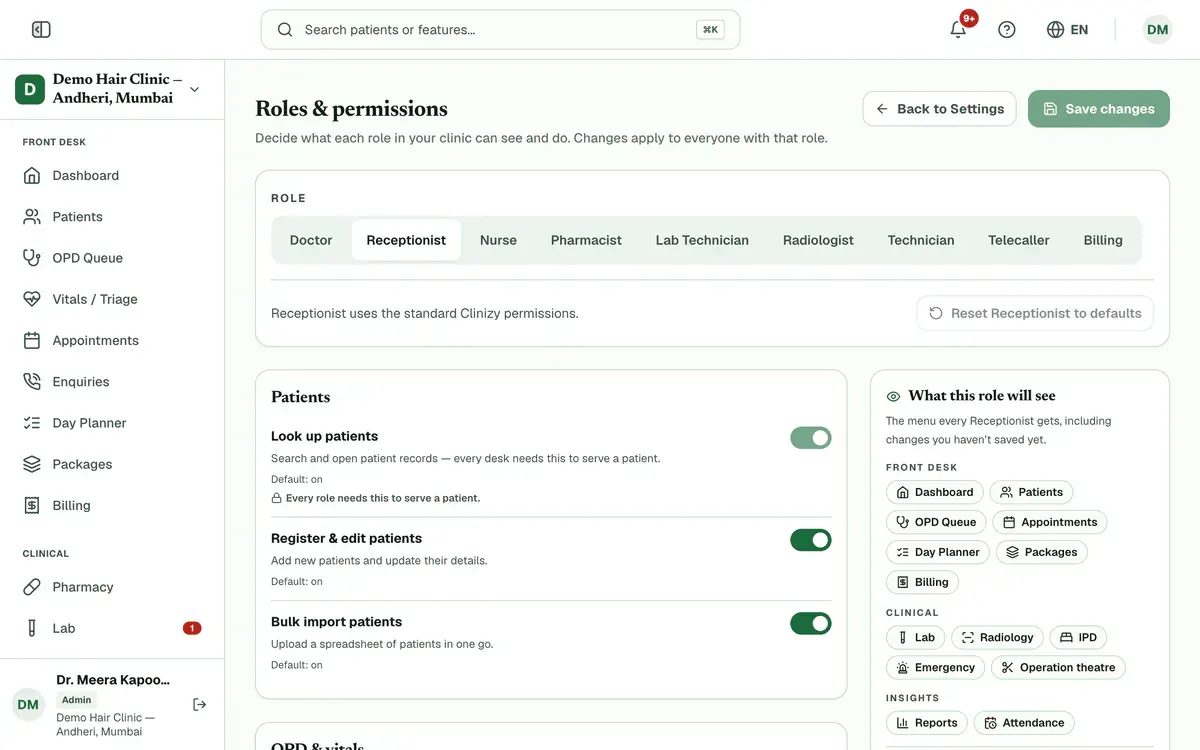
Step 2 of 8 Read each row. It says what the permission does and whether the standard setting is on or off.
Tip:A row marked Changed differs from the standard setting.
Use each switch to allow or block an action.
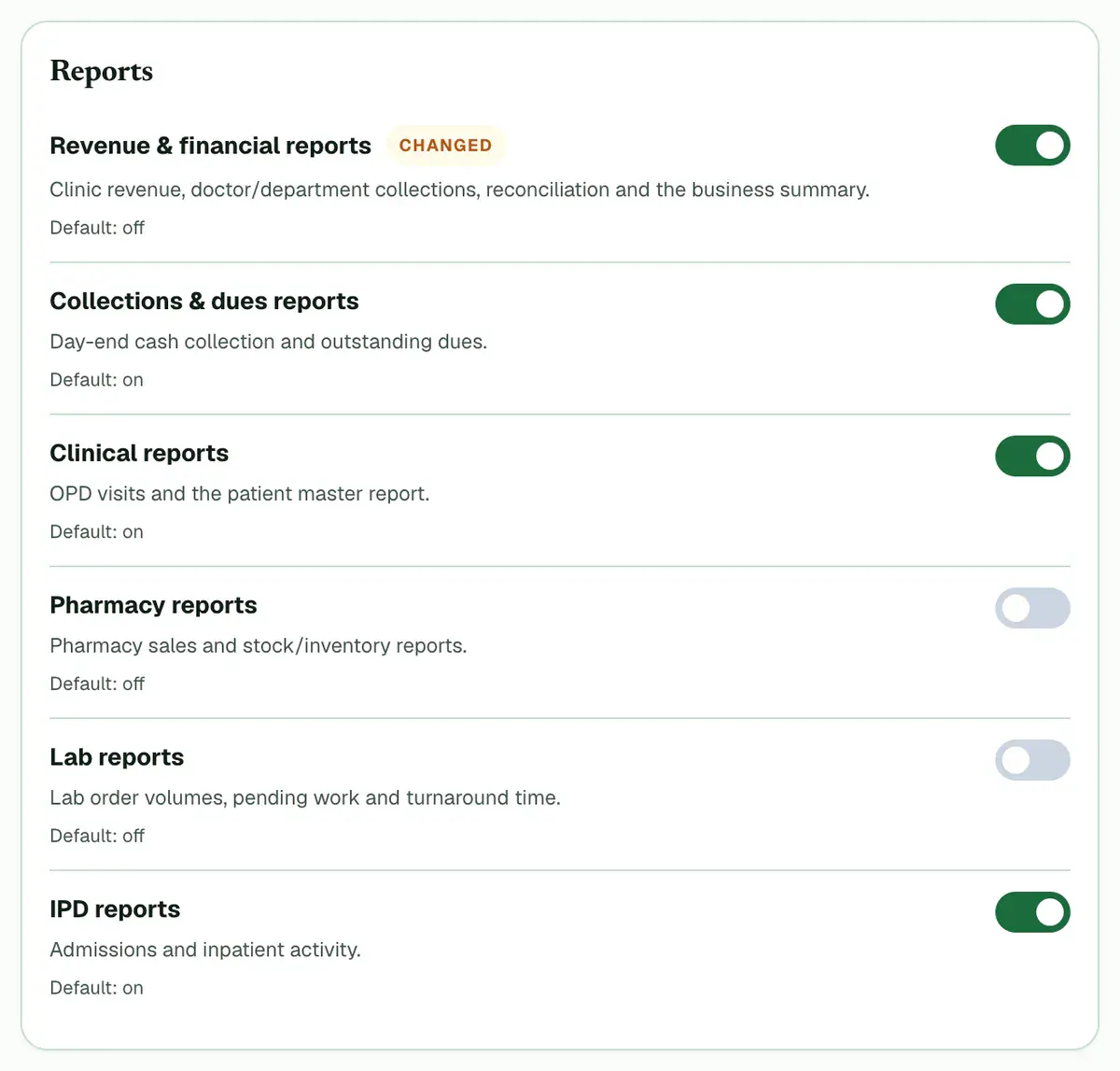
Step 4 of 8 Tip:For example, turn on Revenue & financial reports so a receptionist can see revenue reports.
Careful:Turning a switch off also turns off the permissions that depend on it. Locked switches cannot be changed.
Check the What this role will see panel. It shows the menu this role will get. Items your change adds are marked New.
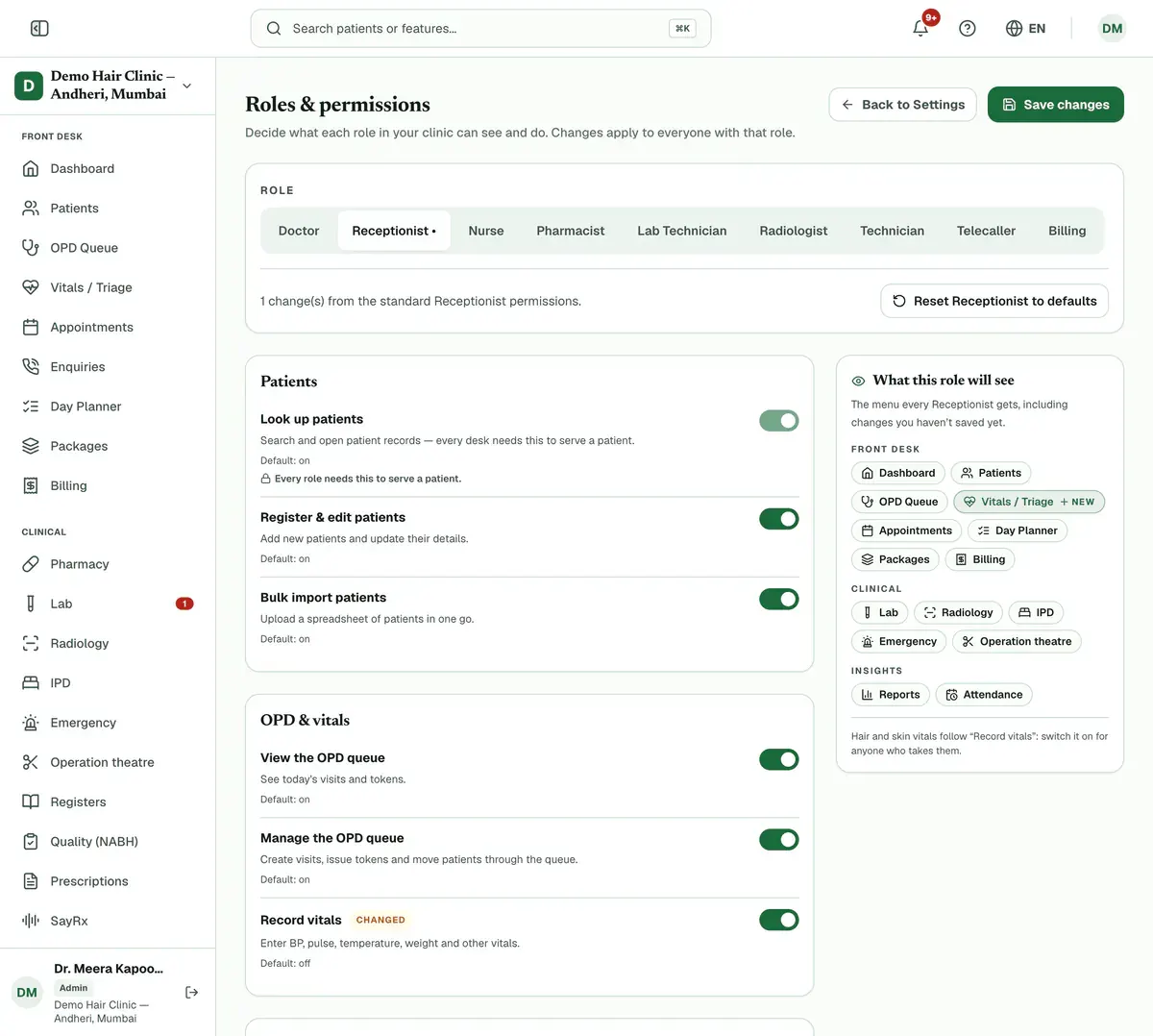
Step 5 of 8 Tip:Items your change takes away are listed under Disappears when you save.
Pick another role and repeat. A dot beside a role name means it has unsaved changes.
Press Save changes, then confirm. Signed-in staff get the change within a few minutes.
Go back to the standard setup by picking the role, pressing its reset button and saving.
If something goes wrong
Can I change what an admin can do?
No. Admin always has full access, so it is not in the list of roles.
Do staff need to sign in again?
No. Staff who are signed in get the change within a few minutes.
Why does a row say Not in your plan?
Your plan does not include that module, so you cannot change its switch.
Who can record hair and skin vitals?
Doctors, and every role with Record vitals switched on. In a hair or skin clinic, turn this switch on for each role that takes those readings.
Related guides
Add staff and give them roles
Open Staff Management and press Add Staff. Enter the person’s name, mobile number and role, then save. Clinizy Care sends them a WhatsApp welcome and shows, live, whether it arrived. The welcome has no password, so copy the temporary password and share it with them. Edit, reset or deactivate staff on the same page.
5 minIncluded in Clinic and aboveSet your security rules
Open Settings and press Security policies. Turn on two-factor sign-in for your own account, then set the password, session, device and lockout rules. Press Save policy to apply them to all staff. You can also sign out any device from the same page.
5 minIncluded in Clinic and aboveUse the settings hub
Open Settings to find every clinic setting in one place. The top shows your setup progress and plan. Below, cards are grouped by topic: setup, communication, security and billing. Press any card to open it. Start with Facility profile, then check Plan & subscription.
3 minIncluded in Clinic and above
Was this guide helpful?
Last updated 26 Oct 2026By the Clinizy Care product team