
Admit a patient
- Admin and clinic owner
- Receptionist
Short answer
In Clinizy Care, open IPD, press New Admission, search for the patient and choose the doctor. Pick a ward and a free bed, add the diagnosis and the attendant’s details, then enter the deposit and confirm. The bed turns red on the bed map, and you can manage the stay later from the same list.
Before you start
- Register the patient first if they are new to the clinic.
- Know which doctor is admitting the patient.
- Have the deposit amount and the payment mode ready.
Steps
Open IPD from the left menu and press New Admission.
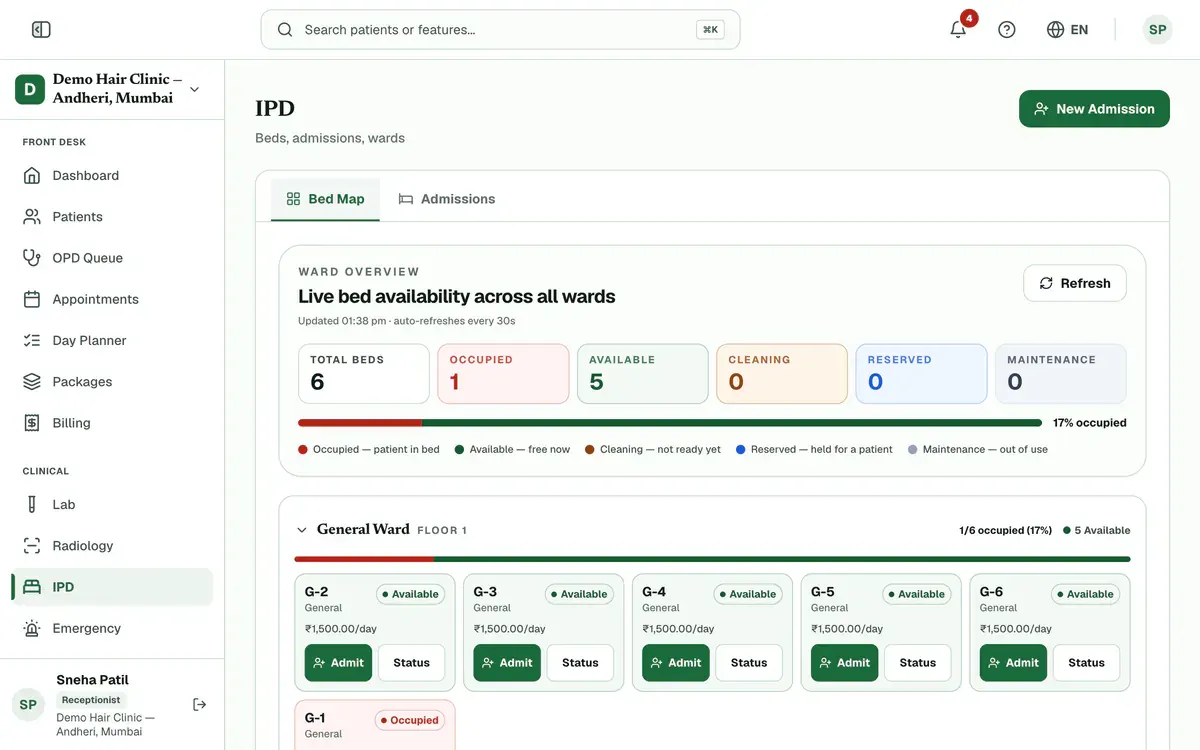
Step 1 of 7 Search for the patient, then choose the Consulting Doctor.
Pick a Ward, then a free bed.
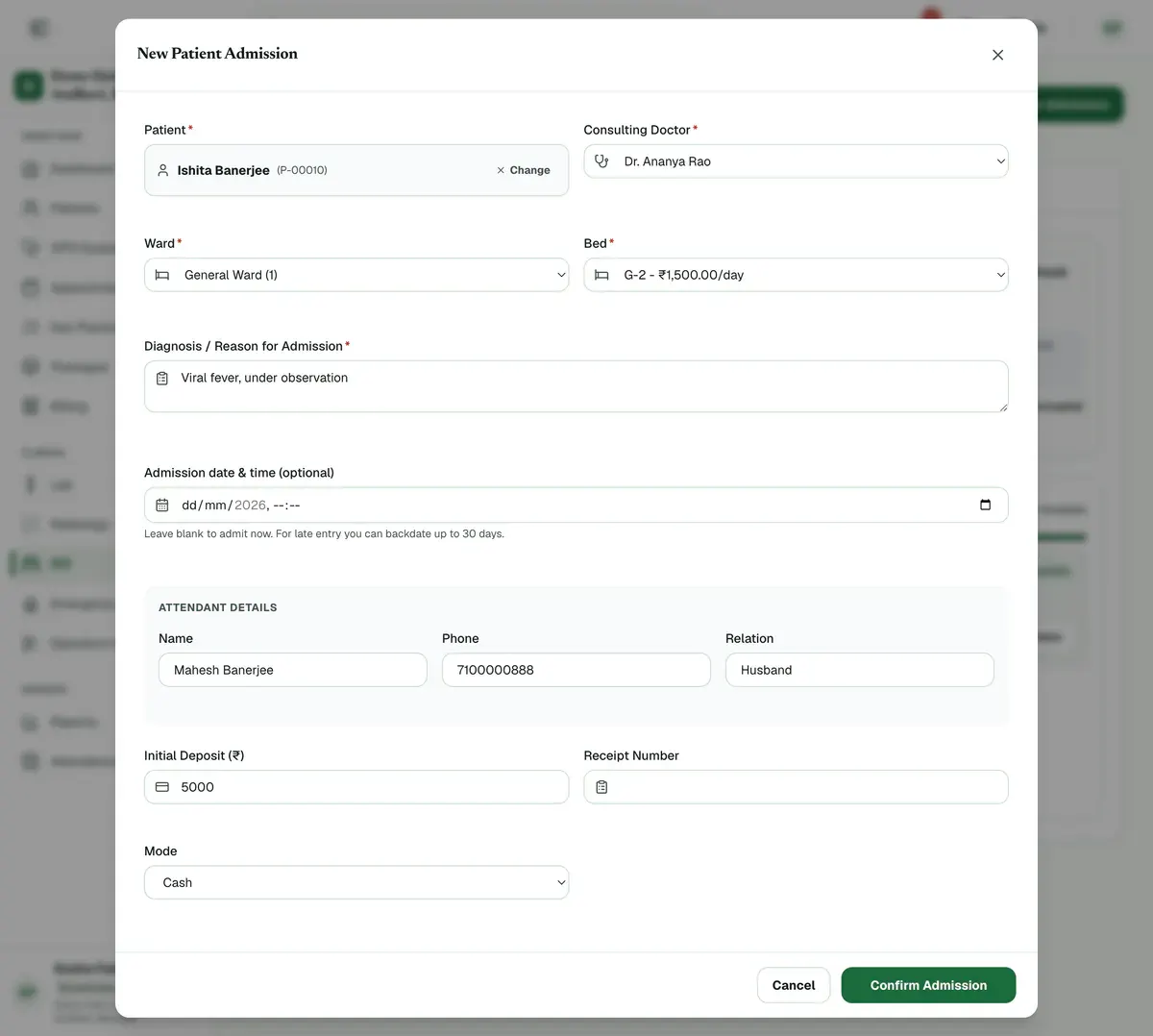
Step 3 of 7 Tip:Reserved beds are listed separately from free beds.
Add the Diagnosis and the Attendant Details.
Enter the deposit amount, how it was paid and the receipt number.
Confirm the admission. The bed turns red on the bed map.
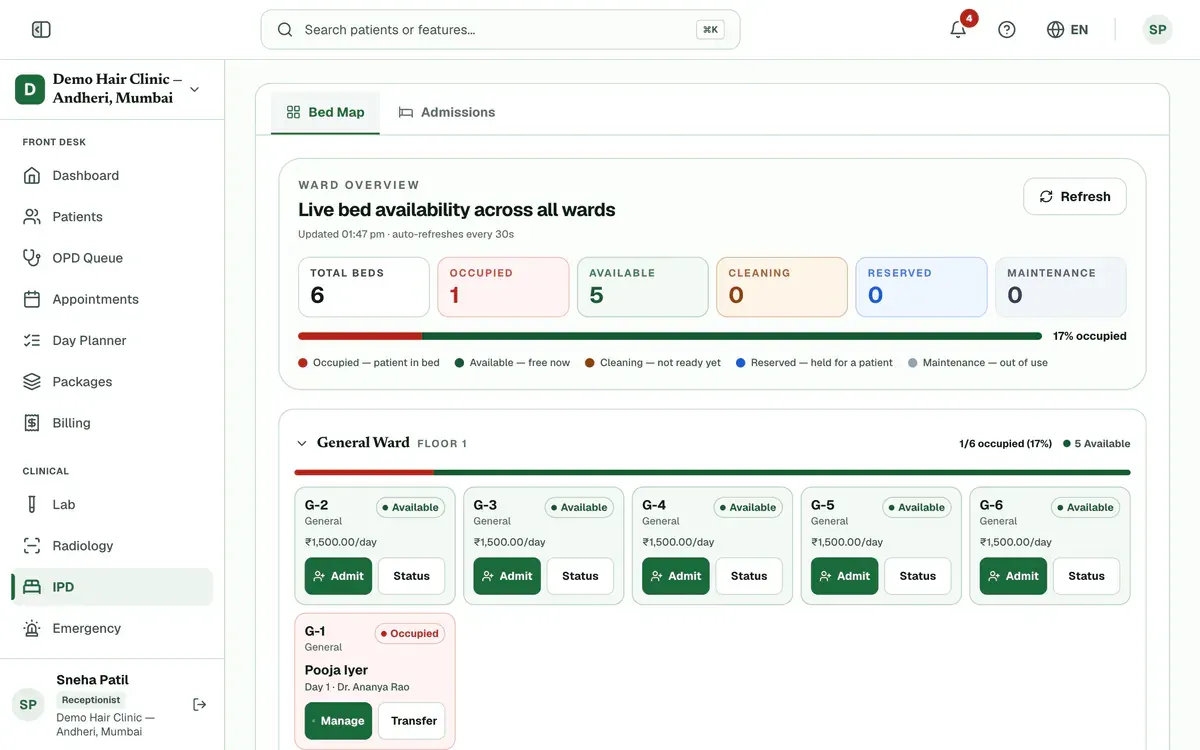
Step 6 of 7 Careful:If this was a mistake, you can reverse the admission within 48 hours while the bed is still free.
Press Manage later to add charges, print the wristband or discharge the patient.
If something goes wrong
What do the bed colours mean?
Red means a patient is in the bed. Green is free, amber needs cleaning, blue is reserved and grey is out of use.
What if I chose the wrong bed?
Move the patient from the bed map. Press Transfer on the red bed, choose the new ward and bed, then save.
Where do I add charges after admission?
Open the admission with Manage. You can add deposits and charges there, and discharge the patient when the stay ends.
Related guides
Discharge a patient and finish the bill
Open IPD, press Manage on the admission and add any deposits or charges. Open the Discharge tab and check the final bill. Give a discount if needed, choose the discharge type, press Discharge Patient and confirm. The bed is freed and the final bill is created.
6 minIncluded in Nursing Home and aboveGet a consent signed
Open the admission with Manage, go to the Consents tab and press Take consent. Choose the form, fill in its details and pick who signs. Let the patient read it in English or Hindi, then collect the signatures on the pad and press Save signed consent.
5 minIncluded in Nursing Home and aboveMove a patient to another bed
Open IPD, find the patient’s red bed on the bed map and press Transfer. Choose the new ward, then a free bed, and press Save Changes. If your clinic asks for cleaning, the old bed stays amber until someone presses Mark ready after housekeeping.
3 minIncluded in Nursing Home and above
Was this guide helpful?
Last updated 23 Oct 2026By the Clinizy Care product teamSee the feature page