
Move a patient to another bed
- Admin and clinic owner
- Doctor
- Nurse
- Receptionist
Short answer
In Clinizy Care, open IPD, find the patient’s red bed on the bed map and press Transfer. Choose the new ward, then a free bed, and press Save Changes. If your clinic asks for cleaning, the old bed stays amber until someone presses Mark ready after housekeeping.
Before you start
- Know which ward and bed the patient is moving to.
- Check on the bed map that the new bed is free.
Steps
Open IPD and find the patient’s red bed on the Bed Map tab.
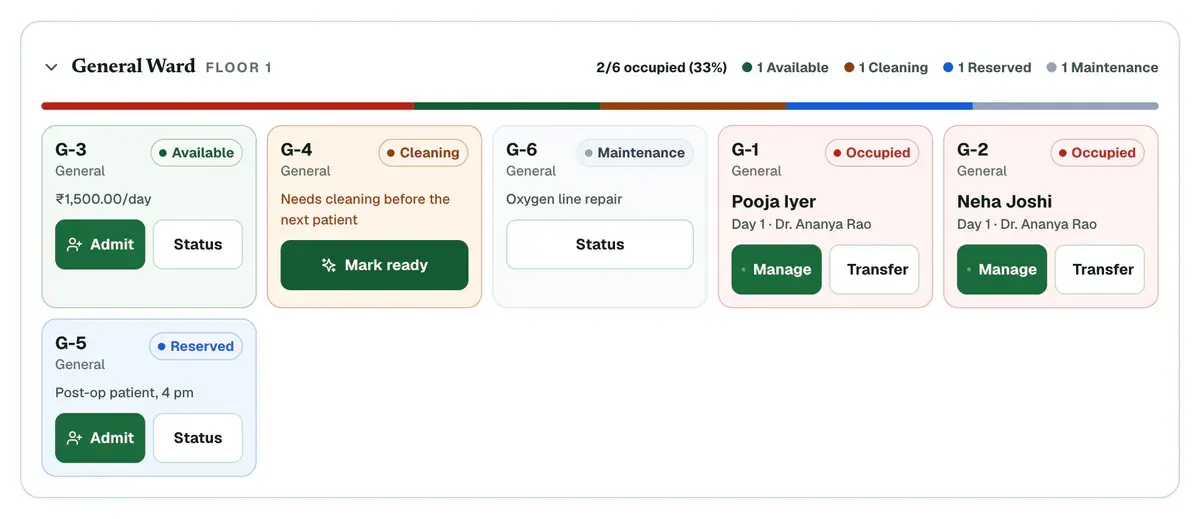
Step 1 of 5 Press Transfer on that bed. The stay opens on the Admission Details tab.
Choose the new Ward, then a free Bed.
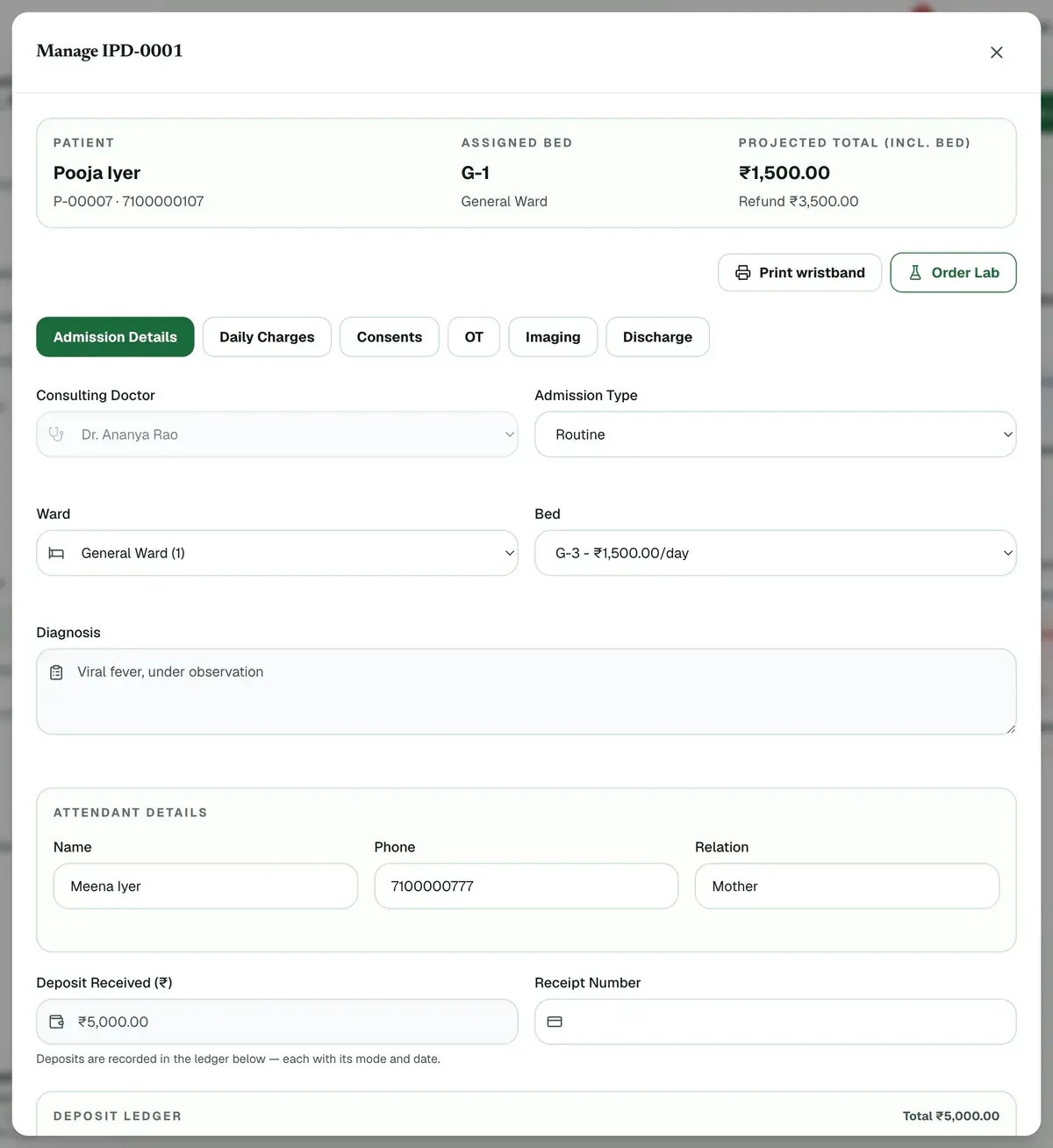
Step 3 of 5 Tip:Reserved beds sit in their own group. Pick one only if it is held for this patient.
Press Save Changes. The bed map then shows the patient in the new bed.
Press Mark ready on the old bed once housekeeping has cleaned it.
Tip:If your clinic does not ask for cleaning, the old bed is free at once and you can skip this step.
If something goes wrong
Can I move a patient to another ward?
Yes. Choose the other ward first, then one of its free beds. The bed list only shows beds from the ward you picked.
Can I move a patient into a reserved bed?
Yes, but only when the bed is held for that patient. Reserved beds are listed in their own group, so the choice is always deliberate.
Why is the old bed amber?
Your clinic asks for cleaning after a patient leaves a bed. The bed stays amber until someone presses Mark ready on it.
Related guides
Use the bed map
Open IPD and stay on the Bed Map tab. The counts at the top show occupied, free, cleaning, reserved and out-of-use beds. Each tile has a colour: red has a patient, green is free, amber needs cleaning, blue is reserved and grey is out of use. Press Manage on a red bed to open that stay.
3 minIncluded in Nursing Home and aboveAdmit a patient
Open IPD, press New Admission, search for the patient and choose the doctor. Pick a ward and a free bed, add the diagnosis and the attendant’s details, then enter the deposit and confirm. The bed turns red on the bed map, and you can manage the stay later from the same list.
4 minIncluded in Nursing Home and aboveDischarge a patient and finish the bill
Open IPD, press Manage on the admission and add any deposits or charges. Open the Discharge tab and check the final bill. Give a discount if needed, choose the discharge type, press Discharge Patient and confirm. The bed is freed and the final bill is created.
6 minIncluded in Nursing Home and above
Was this guide helpful?
Last updated 23 Oct 2026By the Clinizy Care product teamSee the feature page