
Check your notifications
- Admin and clinic owner
- Doctor
- Nurse
- Receptionist
- +6
Short answer
In Clinizy Care, press the bell in the top bar to open Notifications. Press an alert to mark it read, or press its link to go to the right page. Use the tabs and Unread only to find what matters, and press Mark all read when you have seen everything.
Before you start
- Sign in to Clinizy Care first.
- Alerts are sent to you by your role, so each person sees different ones.
Steps
Press the bell in the top bar to open Notifications.
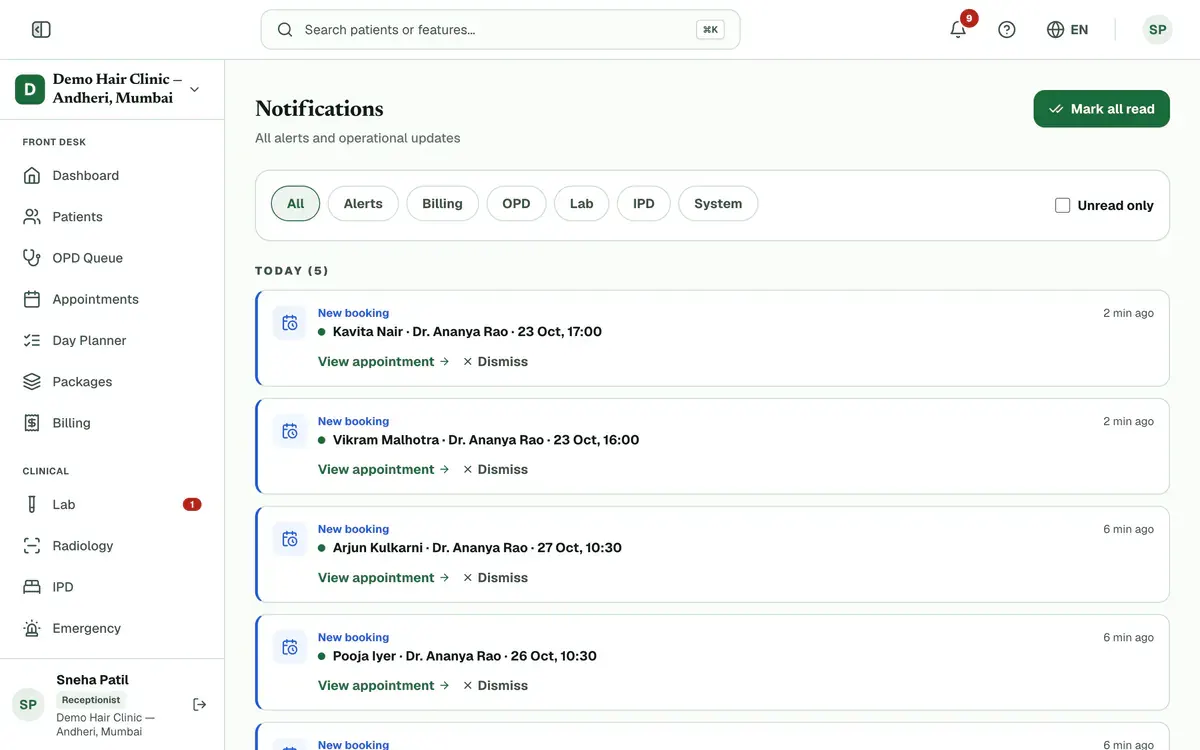
Step 1 of 6 Tip:A red number on the bell counts your unread alerts.
Read the list. New alerts are grouped under Today, Yesterday, This week and Older.
Tip:Unread alerts have a green dot and bold text.
Press an alert to mark it read. Press its link, such as View appointment, to go to the right page.
Tip:A link shows only when your role and plan can open that page.
Pick a tab, such as Alerts, for one kind of alert. Tick Unread only to hide the ones you have read.
Tip:Tabs such as Billing, Lab and Pharmacy show only when your role and plan use them.
Press Mark all read once you have seen everything.
Press Dismiss on an alert you no longer need.
Tip:On a phone you can also swipe an alert to the left.
Careful:A dismissed alert is gone for good. You have five seconds to press Undo.
If something goes wrong
What does the number on the bell mean?
It counts your unread alerts. The number goes down as you read them, and it shows 9+ when there are more than nine.
Why are some tabs missing for me?
Tabs show only for the modules your role can open and your plan includes. For example, a pharmacist sees Pharmacy but not IPD.
Can I get back an alert I dismissed?
Only for five seconds. Press Undo in the message that appears. After that the alert is gone for good.
Related guides
Add staff and give them roles
Open Staff Management and press Add Staff. Enter the person’s name, mobile number and role, then save. Clinizy Care sends them a WhatsApp welcome and shows, live, whether it arrived. The welcome has no password, so copy the temporary password and share it with them. Edit, reset or deactivate staff on the same page.
5 minIncluded in Clinic and aboveChange the language
Press the globe button in the top bar. On a phone, press More and use the Language row instead. Choose English, Hinglish or हिन्दी. The menus and buttons change straight away. Your choice is saved in that browser only, so repeat it on any other device you use.
2 minIncluded in Clinic and aboveChoose what each role can see
Open Settings and press Roles & permissions. Pick a role, then switch each permission on or off. The What this role will see panel shows the menu that role will get before you save. Press Save changes and confirm. Signed-in staff get the change within a few minutes, with no new login needed.
4 minIncluded in Clinic and above
Was this guide helpful?
Last updated 23 Oct 2026By the Clinizy Care product team