
Set your security rules
- Admin and clinic owner
Short answer
In Clinizy Care, open Settings and press Security policies. Turn on two-factor sign-in for your own account, then set the password, session, device and lockout rules. Press Save policy to apply them to all staff. You can also sign out any device from the same page.
Before you start
- Install an authenticator app on your phone, such as Google Authenticator.
- Decide how long passwords should be and how many wrong tries lock an account.
Steps
Open Settings, then press Security policies.
Turn on two-factor sign-in for your own account. Scan the code with your authenticator app, then enter the 6-digit code.
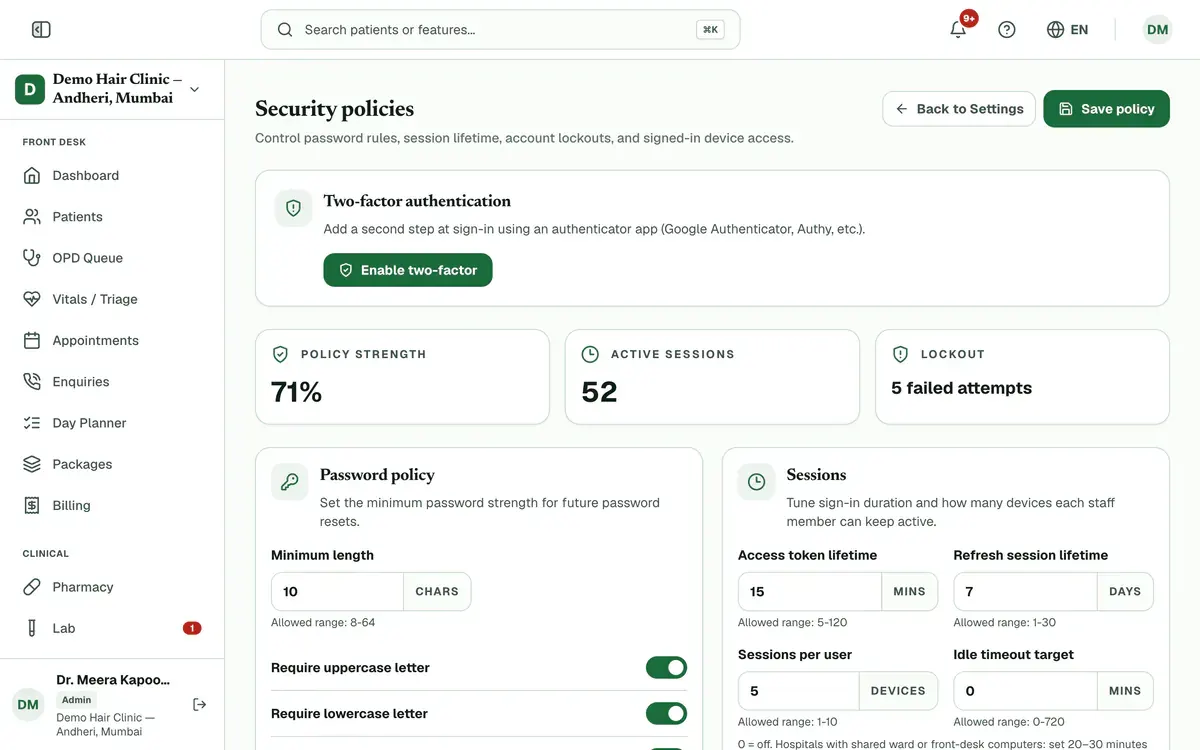
Step 2 of 8 Tip:Save your backup codes. Each works once and is not shown again.
Set the Password policy: the minimum length and which characters are required.
Tip:Password rules apply to future password resets.
Set how long sign-ins last and how many devices each person can keep active under Sessions.
Tip:On shared front-desk or ward computers, set an idle timeout of 20 to 30 minutes. A value of 0 turns it off.
Set how many failed attempts lock an account, and for how many minutes, under Account lockout.
Choose whether staff can use more than one device under Device access.
Careful:Use Block unknown devices only after device review is set up for your clinic.
Press Save policy after you change any rule. The policy applies to all staff.
Careful:If a box shows a red range message, fix it first. Save stays blocked until then.
Press Revoke on a session under Signed-in devices to sign that device out straight away.
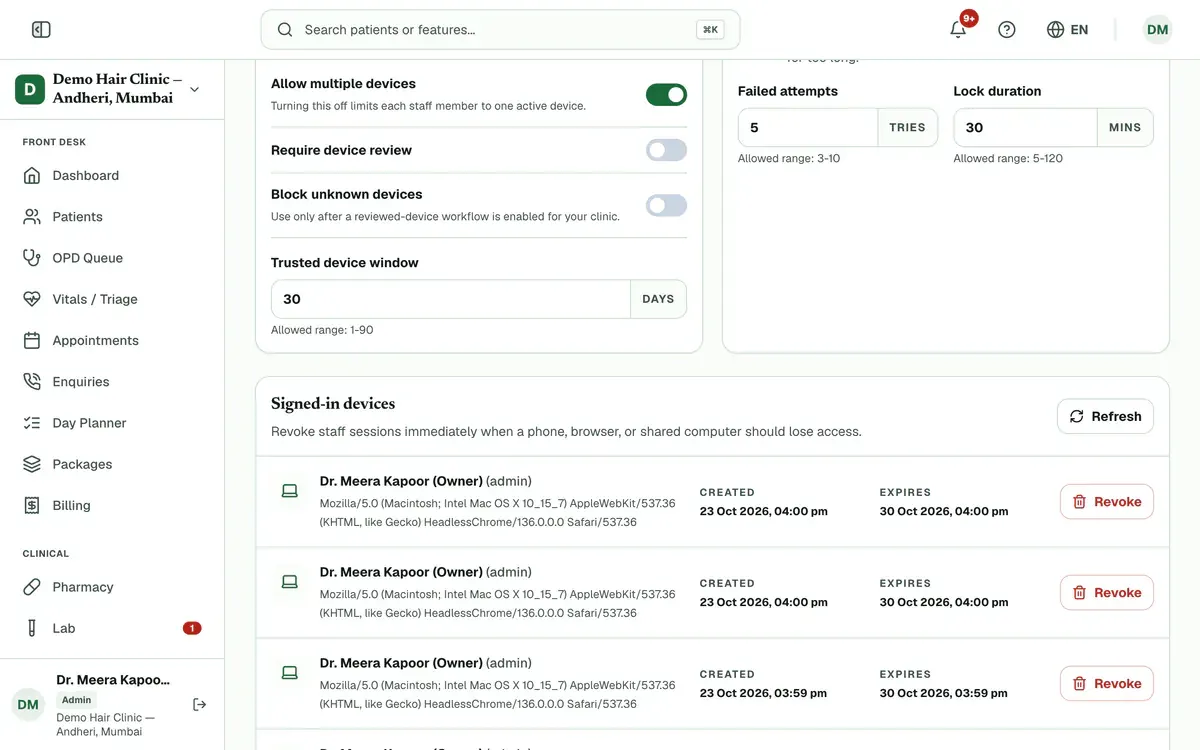
Step 8 of 8 Careful:Revoking works at once. It does not wait for you to save the policy.
If something goes wrong
Does two-factor apply to all staff?
No. The two-factor card turns it on for your own account only.
When do new password rules start?
They apply to future password resets, as the Password policy card says.
How do I sign out a lost phone?
Find it under Signed-in devices and press Revoke. That device is signed out straight away.
Related guides
Choose what each role can see
Open Settings and press Roles & permissions. Pick a role, then switch each permission on or off. The What this role will see panel shows the menu that role will get before you save. Press Save changes and confirm. Signed-in staff get the change within a few minutes, with no new login needed.
4 minIncluded in Clinic and aboveSet up your clinic profile
Open Settings and press Facility profile. Add your clinic name, address and working hours, and verify your GSTIN. Then press Save Changes to save. Next, open the Departments tab for services and fees, and the Branding tab for your logo and stamp.
6 minIncluded in Clinic and aboveUse the settings hub
Open Settings to find every clinic setting in one place. The top shows your setup progress and plan. Below, cards are grouped by topic: setup, communication, security and billing. Press any card to open it. Start with Facility profile, then check Plan & subscription.
3 minIncluded in Clinic and above
Was this guide helpful?
Last updated 23 Oct 2026By the Clinizy Care product team