
Find stock that is expiring
- Admin and clinic owner
- Pharmacist
Short answer
In Clinizy Care, open Expiry & Alerts. It groups batches that have already expired and those expiring in 30 days, 31 to 60 days and 61 to 90 days. Use the ⋯ menu on a batch to view it in stock, sell it at a discount, or send it back to the supplier.
Before you start
- Make sure each batch has its expiry date. The list is built from those dates.
Steps
Open Expiry & Alerts from the left menu.
Tip:If your menu shows Pharmacy instead, open it and choose Expiry & Alerts.
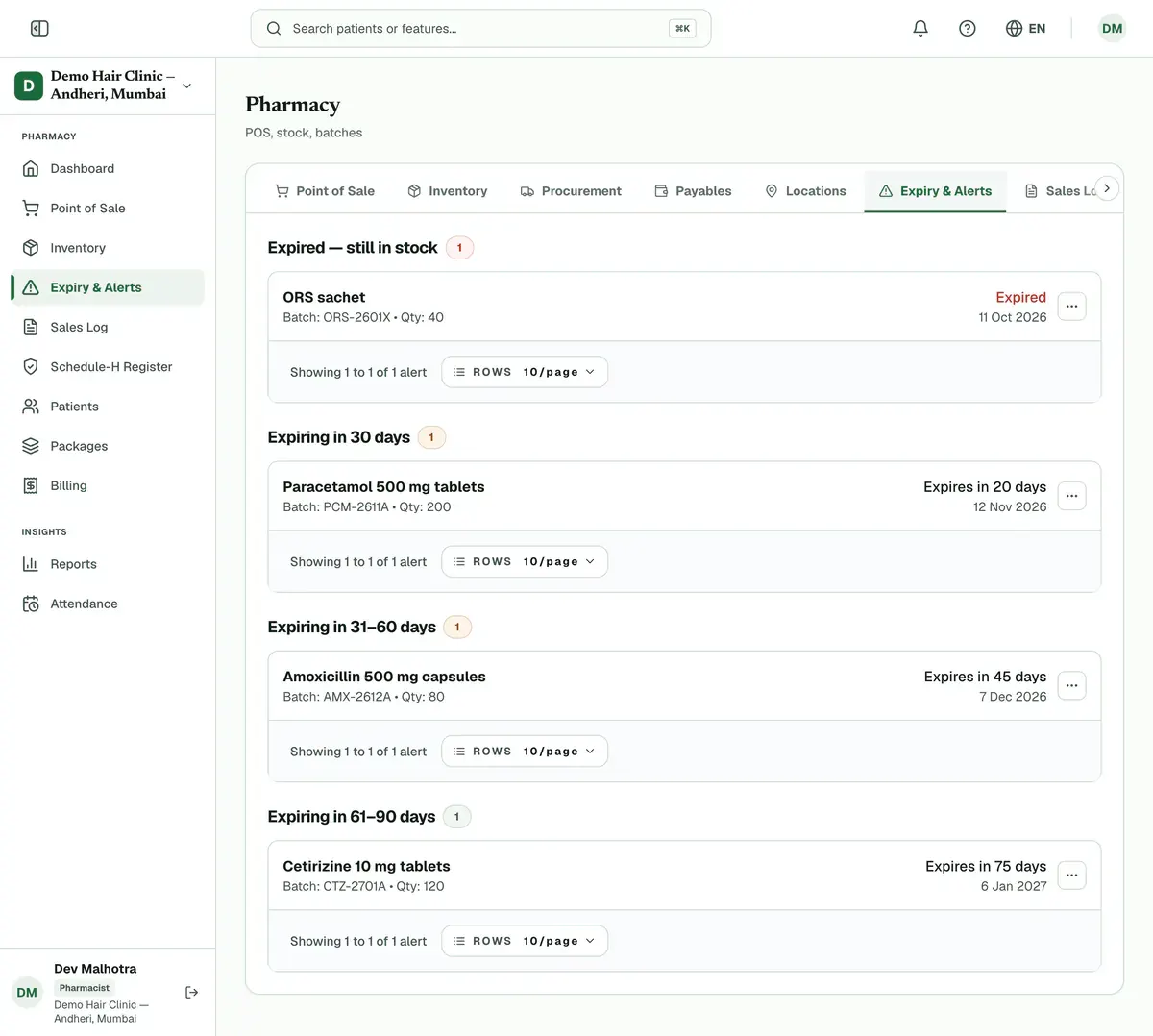
Read the groups: Expired — still in stock, Expiring in 30 days, Expiring in 31–60 days and Expiring in 61–90 days.
Step 2 of 7 Tip:In Inventory, the Expiring ≤ 60 days chip gives a quick list for the next 60 days.
Check each batch for its medicine, batch number, quantity and days left.
Press the ⋯ menu on a batch, then View batch to open it in Inventory.
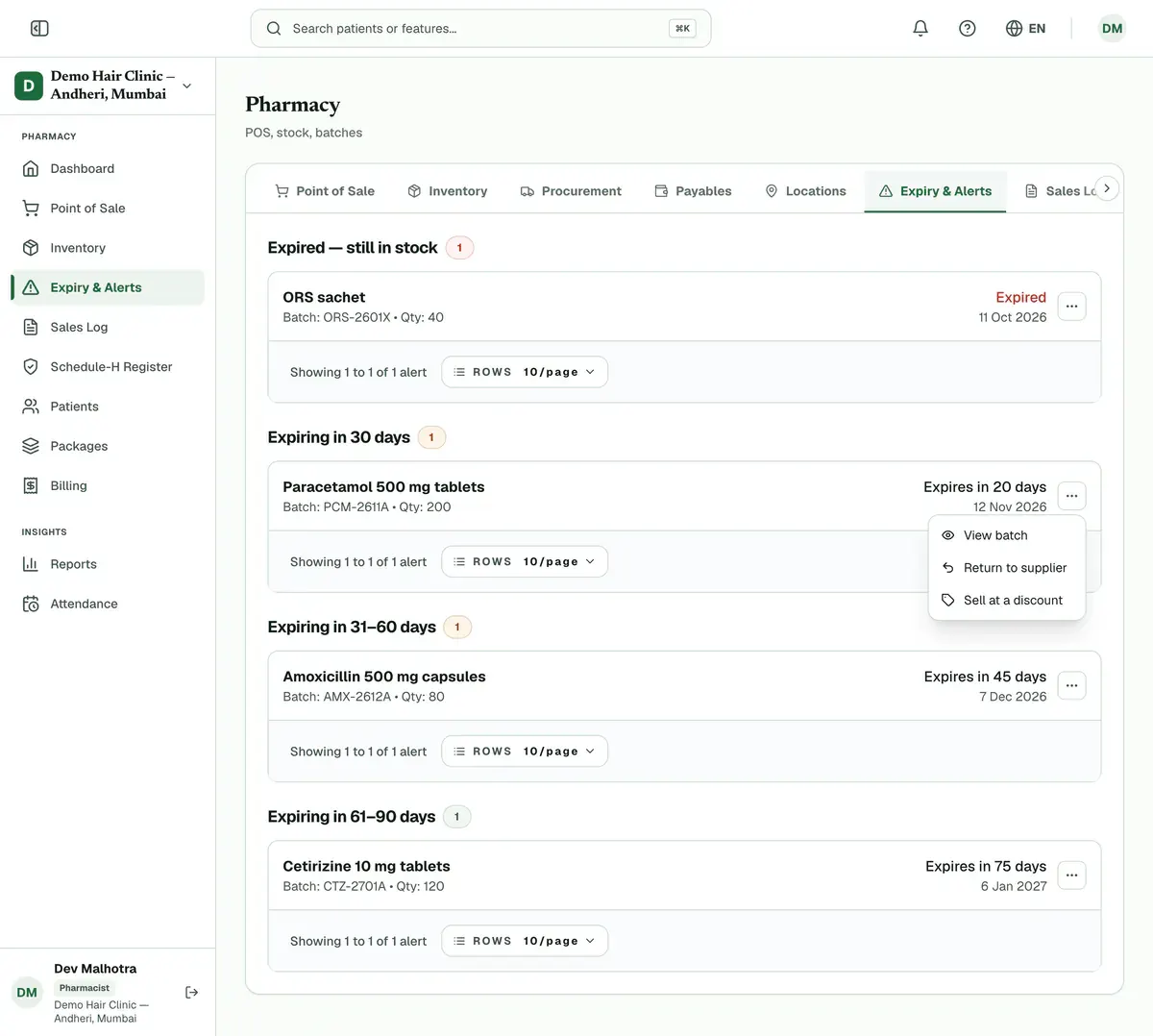
Step 4 of 7 Choose Sell at a discount to sell a batch faster. Add a short note and press Save.
Tip:The Point of Sale screen shows your note on that batch.
Careful:An expired batch cannot be sold, so it has no discount option.
Choose Return to supplier or Mark for return, whichever your menu shows, to send a batch back.
Tip:A marked batch shows a Marked for return tag.
Choose Clear flag when a batch needs no more action.
If something goes wrong
How many days ahead does it warn me?
It lists batches that expire within 90 days, in three groups: up to 30 days, 31 to 60 days and 61 to 90 days. Batches that have already expired but are still in stock have their own group.
Why can I not discount an expired batch?
An expired batch cannot be sold, so the discount option is hidden for it. Return it to the supplier or mark it for return instead.
What does the discount note do?
It shows on that batch at Point of Sale, so the person at the counter offers it first. The note is only a reminder. You still enter the discount when you sell.
Related guides
Dispense medicines
Open Point of Sale from the left menu. Pick the patient or a walk-in customer, then scan or search each medicine to add it. Check the batch and quantity, enter the payment, and press Complete Sale. Stock goes down at once, and the receipt is ready to print or send.
4 minIncluded in Clinic and aboveReceive stock and add batches
Open Inventory and search for the medicine. If it is new, press Add Medicine first. Then press Add Batch on its row and enter the batch number, expiry date, quantity, MRP and purchase price. The stock is ready to sell as soon as you save.
4 minIncluded in Clinic and aboveAdjust or return stock
Open Procurement. To remove damaged, expired or miscounted units, press Write off stock, choose the batch and quantity, and give a reason. To send goods back to a supplier, press Purchase return, choose the receipt and batch, and give a reason. Both are saved with a record.
4 minIncluded in Nursing Home and above
Was this guide helpful?
Last updated 23 Oct 2026By the Clinizy Care product teamSee the feature page