
Plan the day with the Day Planner
- Admin and clinic owner
- Receptionist
- Telecaller
Short answer
In Clinizy Care, open Day Planner to see every doctor and technician on one screen. Check who is free in Team now, then press + Book on a free time and fill in the side panel. Press the one button on each card as the patient arrives, and work through the follow-ups on the right.
Before you start
- Your clinic must have the Day Planner switched on.
- Working hours must be set for each doctor and technician.
Steps
Open Day Planner to see everyone’s day on one screen. Use the arrows or Today to change the day.
Look at Team now to see who is free, with a patient or away. Press a name to jump to their column.
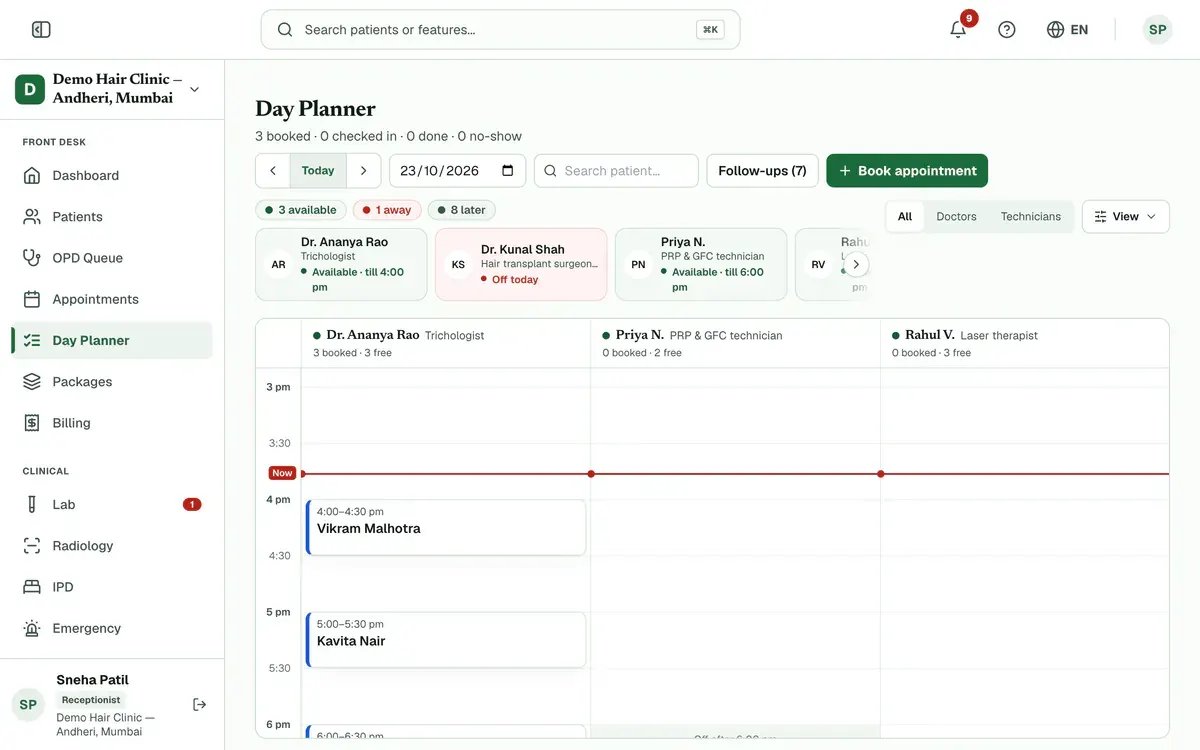
Step 2 of 7 Tip:Green means free, blue means with a patient and red means away.
Read the grid. Each column is one doctor or technician, blocks match appointment length, and the red line is now.
Tip:Grey is off shift. Use All, Doctors or Technicians to show only some columns.
Careful:A column that says Slots open at clock-in has no free times until that person clocks in.
Press + Book on a free time, or press Book appointment at the top.
Fill in the side panel: find the patient, choose the visit type, doctor and time, then press Book appointment.
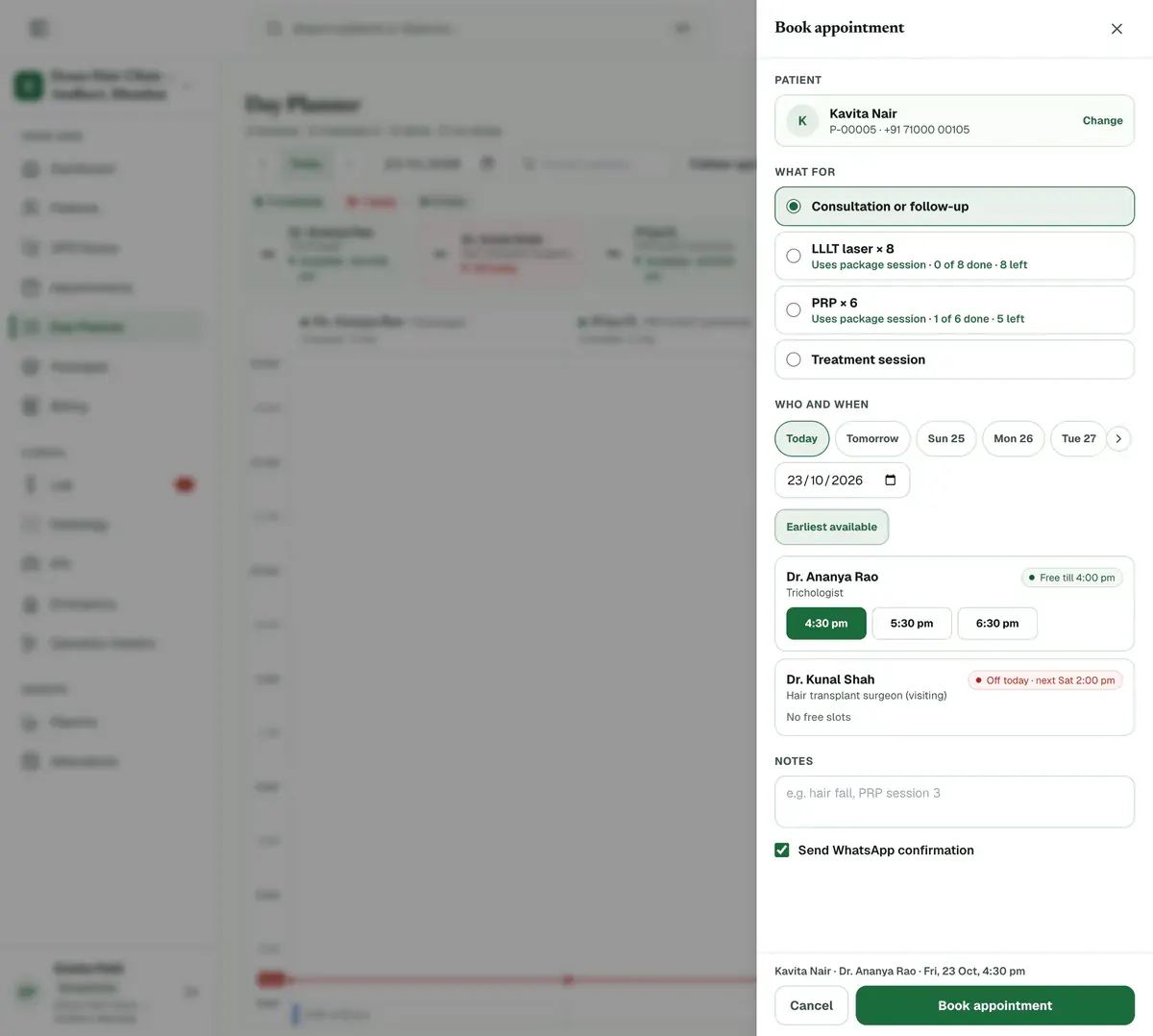
Step 5 of 7 Tip:Send WhatsApp confirmation is ticked by default. Untick it if you do not want to send one.
Press the one button on a card, such as Check in, as the patient arrives. On a short card, open it to find the button.
Tip:The card also shows notes, the status timeline and more actions. Once the patient is checked in, Visit progress shows the next step.
Check the follow-ups on the right: Needs action, Packages, Calls and Birthdays.
Tip:On a smaller screen, press Follow-ups at the top to open them.
If something goes wrong
What do doctors and technicians see in the Day Planner?
Only their own column. They can check in their own patients, but they cannot book, move or cancel appointments. An admin can turn the Day Planner on or off for each role in Roles & permissions.
Why does a doctor or technician show Hours not set?
Their working hours are not set yet. An admin can set them from the pencil icon on that person’s tile.
Can I move or cancel a booking from the Day Planner?
Yes. Open the card, then choose Reschedule or Cancel. You can also mark a no-show from the same card.
Related guides
Book an appointment
Open Appointments and press Book appointment. Choose the doctor and the date, then press Select on a free time. Search for the patient, add a reason if you want one, and press Confirm Booking. The booking then shows on the calendar.
3 minIncluded in Clinic and aboveFind a patient fast
Open Patients and type a name, phone number or UHID in the search box. The list updates as you type. Check the name, age and UHID on the row, then press the patient’s name to open the record. Use the filters when the list is long.
2 minIncluded in Clinic and aboveRegister a new patient
Open Patients, press New Patient and fill in the patient’s name, phone number, date of birth and gender. Then press Register Patient to save. The new record opens straight away with its own UHID, the patient’s unique hospital ID, so reception, the doctor and billing can all find the patient later.
3 minIncluded in Clinic and above
Was this guide helpful?
Last updated 26 Oct 2026By the Clinizy Care product team