
Read a patient’s full record
- Admin and clinic owner
- Doctor
- Nurse
- Receptionist
- +5
Short answer
In Clinizy Care, open Patients, search for the patient and press their name. The card on the left shows who they are and warns about allergies. On the right you will find the visit history, documents, prescriptions, lab orders, appointments and bills. You see only the parts your role needs.
Before you start
- Know the patient’s name, phone number or UHID.
- Remember that your role decides which parts of the record you can see.
Steps
Open Patients, search by name, phone or UHID, and press the patient’s name.
Read the card on the left for the name, UHID, phone, age, blood group and address.
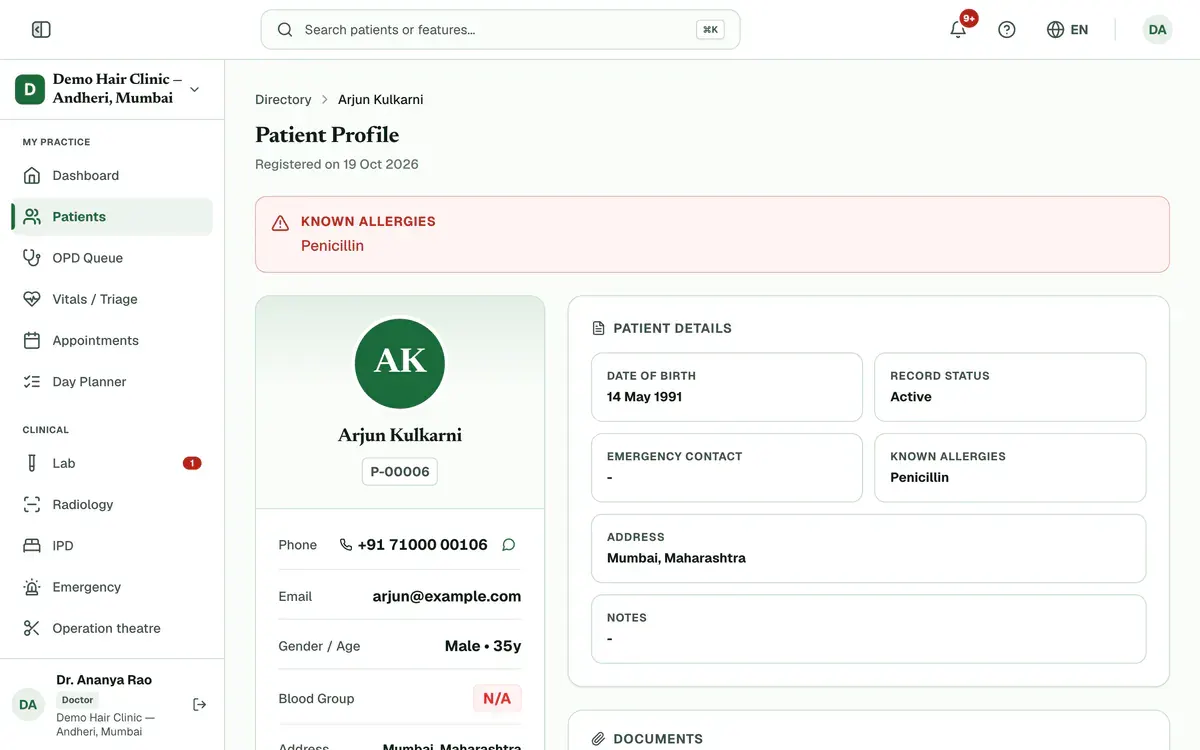
Step 2 of 6 Tip:A red Known Allergies banner shows above the record when the patient has allergies on file.
Scroll to Visit History. Each visit shows its date, doctor and status.
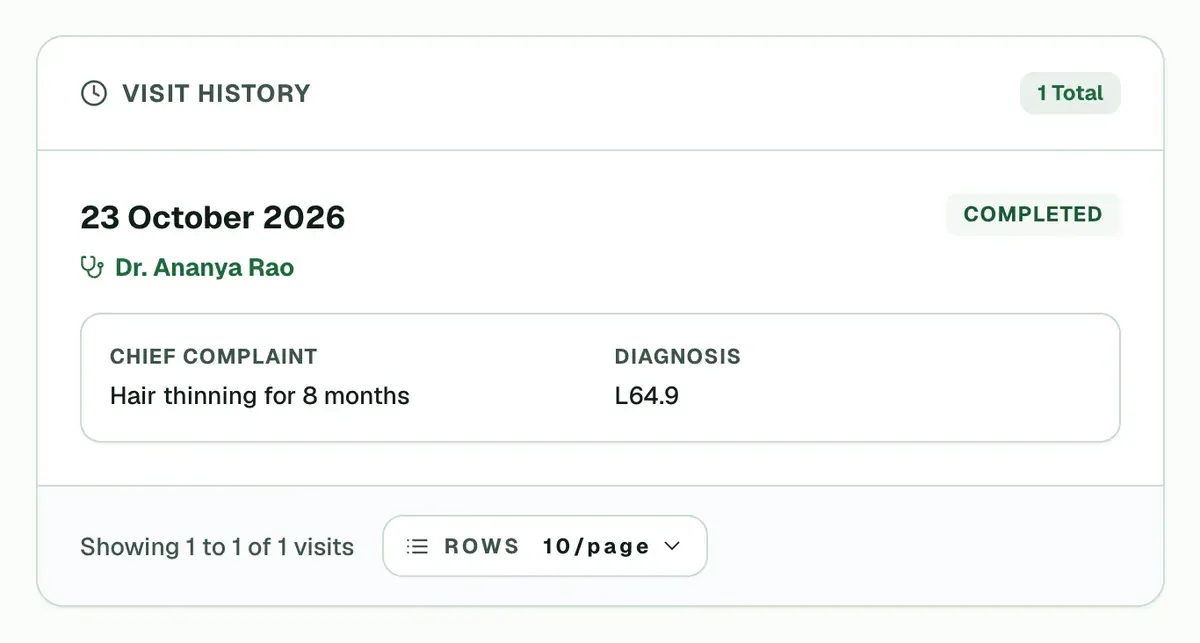
Step 3 of 6 Tip:Older visits are on the next pages. Use the page buttons under the list.
Look further down for Prescriptions, Lab Orders, Appointments, IPD Admissions and Billing History.
Tip:A section shows only if your clinic uses that module and your role may see it. Sections with records come first, and each tells you how many exist in total.
Find the documents section for scans and reports, and download any file from its row.
Tip:Staff who can edit patients can also upload PDF, JPG, PNG or WebP files up to 10 MB.
Press Print wristband or Print stickers to print the patient’s ID.
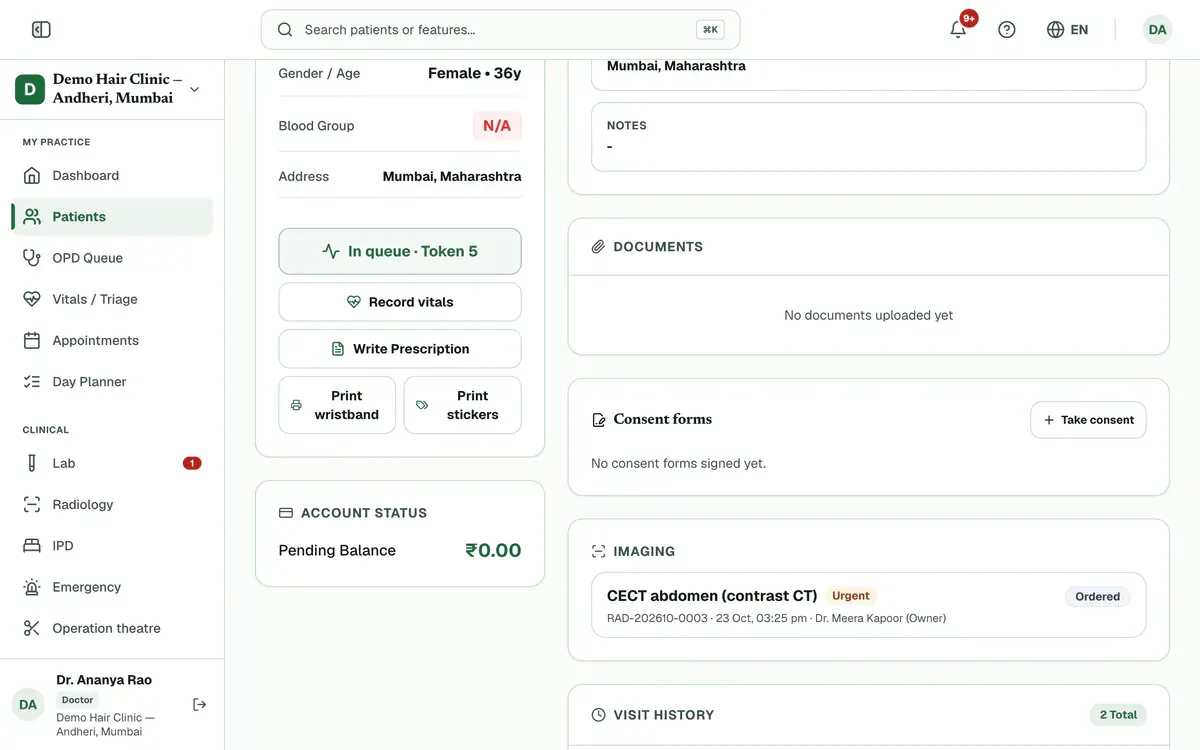
Step 6 of 6 Careful:If nothing opens, allow pop-ups for Clinizy Care in your browser and press the button again.
If something goes wrong
Why can’t I see prescriptions on this record?
Each role sees only what it needs. A lab technician sees no prescriptions, and billing sees the prescribed items without the diagnosis.
How do I print the patient’s ID?
Press Print wristband for a wristband, or Print stickers for a sheet of UHID barcode stickers. A print window opens.
Which files can I attach to a record?
You can attach PDF, JPG, PNG or WebP files, up to 10 MB each. Only staff who can edit patients see the upload button.
Related guides
Correct a wrong patient detail
Open the patient’s record and press Edit Details. Change the wrong detail, such as the phone number, date of birth or allergies, then press Save Changes. If someone else saved the record first, Clinizy Care tells you and keeps what you typed, so nothing is lost.
3 minIncluded in Clinic and aboveRecord hair vitals and watch progress
Open the patient’s record and find the Hair progress card. Press Record hair vitals, enter the readings you have, such as grade, density or pull test, and press Save hair vitals. The first reading is the baseline. From the next one, the card shows what changed.
4 minAdd-on: Hair vitalsTake and compare clinical photos
Open the patient’s record, find the Photos card and press Add photos. Take or choose a photo for each view, then press Save photos. Once there are two sessions, press Compare to look at any two together. The card shows only if your clinic has the photo gallery, which comes with the hair and skin packs.
5 minAdd-on: Clinical photo gallery
Was this guide helpful?
Last updated 23 Oct 2026By the Clinizy Care product teamSee the feature page