
Take and compare clinical photos
- Admin and clinic owner
- Doctor
- Nurse
- Receptionist
Short answer
In Clinizy Care, open the patient’s record, find the Photos card and press Add photos. Take or choose a photo for each view, then press Save photos. Once there are two sessions, press Compare to look at any two together. The card shows only if your clinic has the photo gallery, which comes with the hair and skin packs.
Before you start
- Ask the patient to agree to clinical photos.
- Keep the same distance, light and angle at every visit.
- Check that the Photos card shows on the record. It is hidden if the gallery is off.
Steps
Open the patient’s record and find the Photos card.
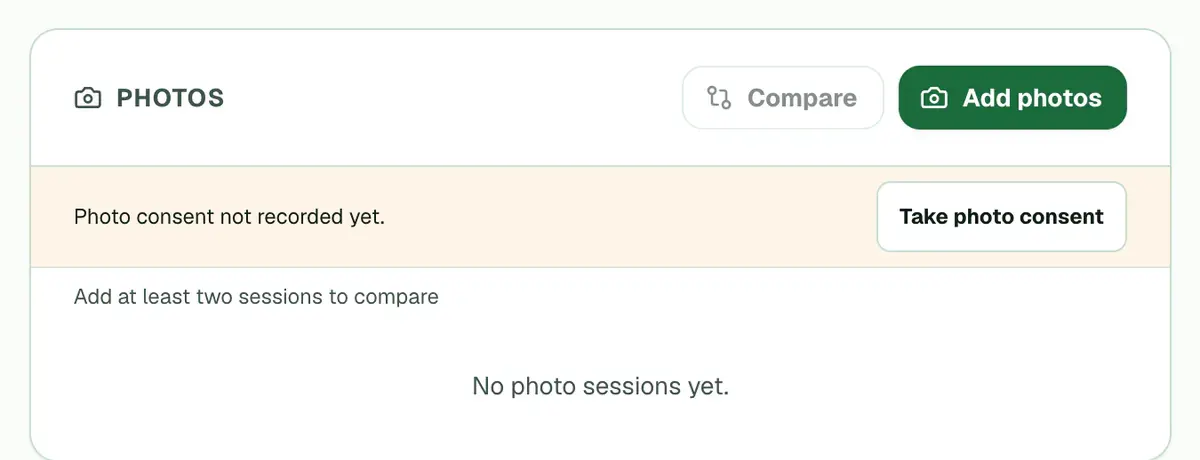
Step 1 of 8 Press Add photos. Check the date, and pick a grade if the form shows one.
Tip:Add a short note about the visit if it helps.
Press Take photo or Choose photo for each view.
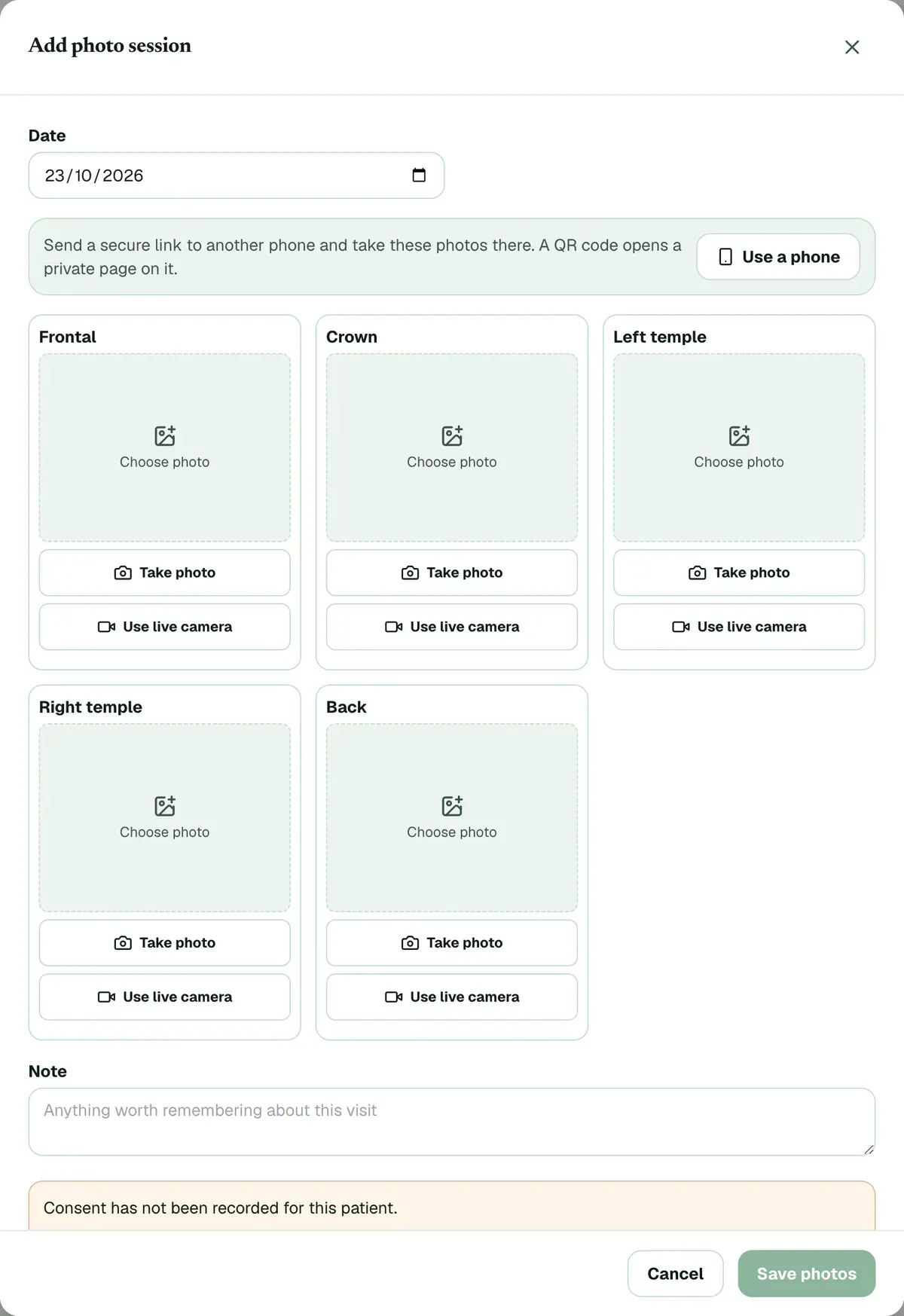
Step 3 of 8 Tip:Use live camera shows the photo from last time faded on screen, if there is one, so you can line up the same angle.
Press Use a phone on a computer and scan the QR code with another phone to take the photos there.
Careful:The link works on one phone only and stops when you save.
Tick Patient consents to clinical photos if the form asks for consent.
Careful:Tick it only after the patient has agreed. Your clinic may not allow saving without it.
Press Save photos and wait until each photo shows Uploaded.
Tip:If a photo fails, press Retry failed photos. Only the failed photos are sent again.
Press Compare once you have two or more sessions.
Tip:The button stays off until there are at least two sessions.
Pick a view, then choose Slider, Side by side, Overlay or Flip.
Tip:Press a session in the strip to change the right photo, or Set as left for the left. All views shows every view at once.
If something goes wrong
Why is Compare greyed out?
You need at least two photo sessions for the same patient. Add photos at another visit, then try again.
Who can delete a photo?
Only admins and doctors see the delete buttons. Nurses and receptionists can add photos but cannot delete them.
Which views does the form ask for?
It asks for the views set up for your clinic. A hair clinic starts with Frontal, Crown, Left temple, Right temple and Back. A skin clinic starts with Front, Left 45°, Right 45°, Left profile, Right profile and Close-up.
Can I take photos with my own phone?
Yes. On a computer, press Use a phone and scan the QR code. On a phone or tablet, press Take photo to open its camera.
Related guides
Correct a wrong patient detail
Open the patient’s record and press Edit Details. Change the wrong detail, such as the phone number, date of birth or allergies, then press Save Changes. If someone else saved the record first, Clinizy Care tells you and keeps what you typed, so nothing is lost.
3 minIncluded in Clinic and aboveRead a patient’s full record
Open Patients, search for the patient and press their name. The card on the left shows who they are and warns about allergies. On the right you will find the visit history, documents, prescriptions, lab orders, appointments and bills. You see only the parts your role needs.
4 minIncluded in Clinic and aboveRecord hair vitals and watch progress
Open the patient’s record and find the Hair progress card. Press Record hair vitals, enter the readings you have, such as grade, density or pull test, and press Save hair vitals. The first reading is the baseline. From the next one, the card shows what changed.
4 minAdd-on: Hair vitals
Was this guide helpful?
Last updated 26 Oct 2026By the Clinizy Care product team