
Review the audit trail
- Admin and clinic owner
Short answer
In Clinizy Care, open Settings and press Audit logs. Each row shows who did what, when, and from which IP address. Narrow the list by search, record type, action or dates. Press a row to see its details, and press Export CSV to download the rows that match.
Before you start
- Sign in as the clinic admin. Only the admin can open this page.
- Know roughly when the event happened, or who did it.
Steps
Open Settings, then press Audit logs under Security & compliance.
Filter the list. Pick a record type and an action, set the dates, or type in the search box.
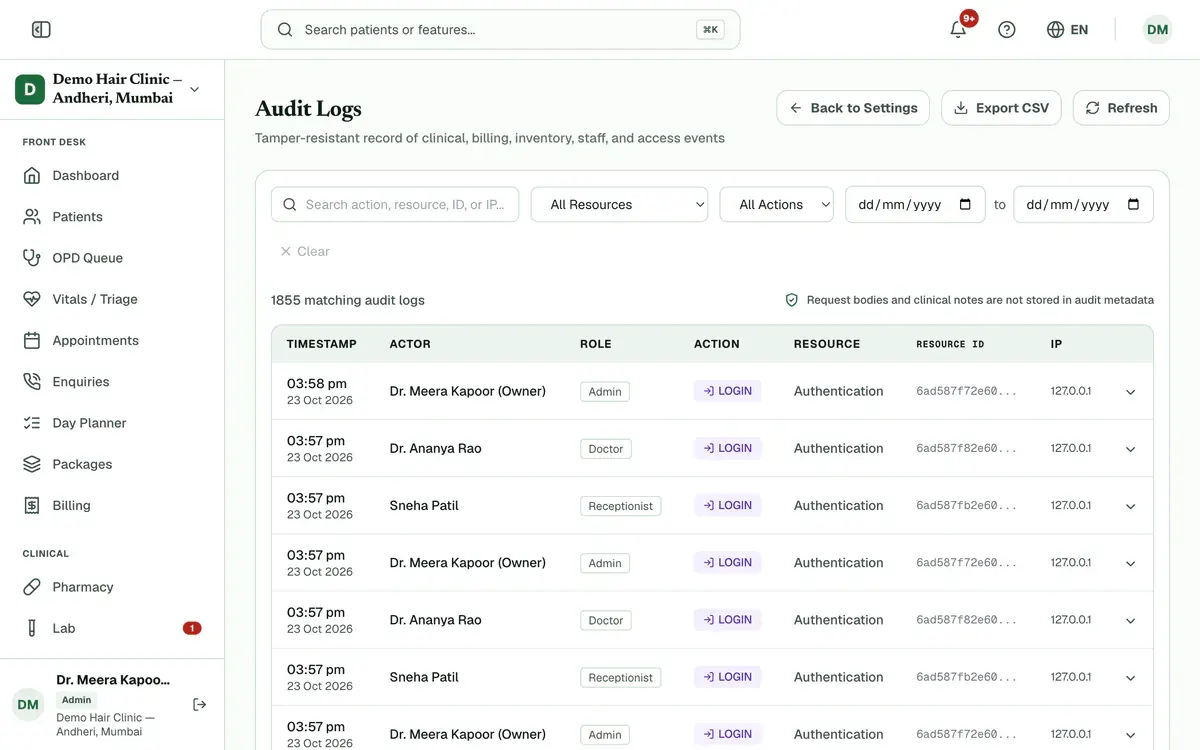
Step 2 of 5 Tip:Search matches the action, record type, ID or IP address. Press Clear to remove all filters.
Read each row: when it happened, who did it, their role, the action and the record type.
Tip:The log does not store request bodies or clinical notes.
Press a row to open its details, such as the IP address and the device.
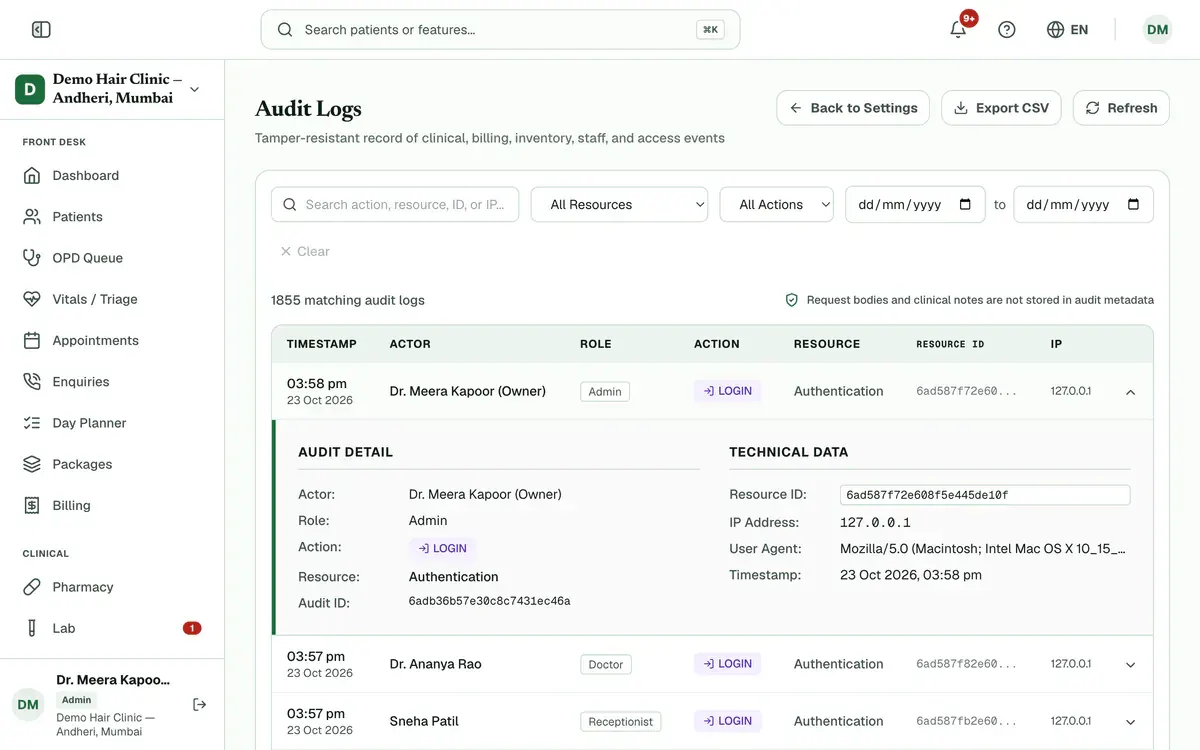
Step 4 of 5 Press Export CSV to download every row that matches your filters.
If something goes wrong
Who can open the audit trail?
The clinic admin. It sits in the admin settings, under Security & compliance.
Can I change or delete an entry?
No. The page is read-only, and Clinizy Care describes the log as tamper-resistant.
Does it show patient notes?
No. Request bodies and clinical notes are not stored in the log.
Related guides
Manage add-ons
Open Settings and press Add-ons. See how many branches and doctor and staff seats you use. Choose the extra ones you need with the plus button, check the total and pay securely online. The add-on switches on as soon as the payment is confirmed.
4 minIncluded in Clinic and aboveSet up branches
Open Settings and press Branches. Check how many branches you use, then press Open a branch and fill in the branch name and address. Each branch keeps its own patients, stock, billing and staff. Press Switch on a branch card to work inside it.
5 minIncluded in Hospital and aboveChoose what each role can see
Open Settings and press Roles & permissions. Pick a role, then switch each permission on or off. The What this role will see panel shows the menu that role will get before you save. Press Save changes and confirm. Signed-in staff get the change within a few minutes, with no new login needed.
4 minIncluded in Clinic and above
Was this guide helpful?
Last updated 23 Oct 2026By the Clinizy Care product team