
Set up your lab test list
- Admin and clinic owner
Short answer
In Clinizy Care, open Lab and choose Catalog. Every platform test is already there. Type your price on each test row and press Save prices. Hide tests you do not offer, change a test’s details with the pencil, or press Add custom test for a test of your own. Changes apply only to your clinic.
Before you start
- Have your price list ready, or a CSV file with the columns code and price.
- Know which tests your lab does not offer.
Steps
Open Lab from the left menu and choose Catalog.
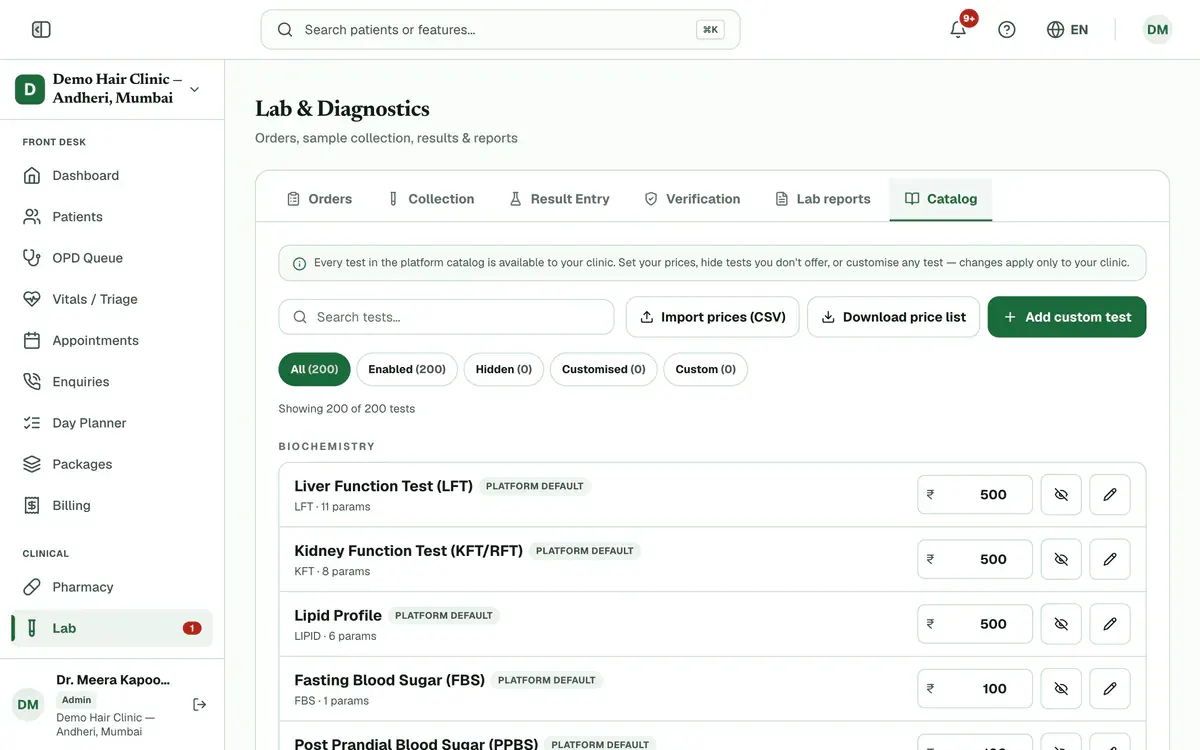
Step 1 of 7 Tip:By default, only an admin sees this tab.
Search for a test, or use the filters to see Hidden, Customised or Custom tests.
Type your price in the ₹ box on a test’s row.
Tip:Changed prices wait until you save them. The bar at the bottom counts them.
Press Save prices to save all the changed prices together.
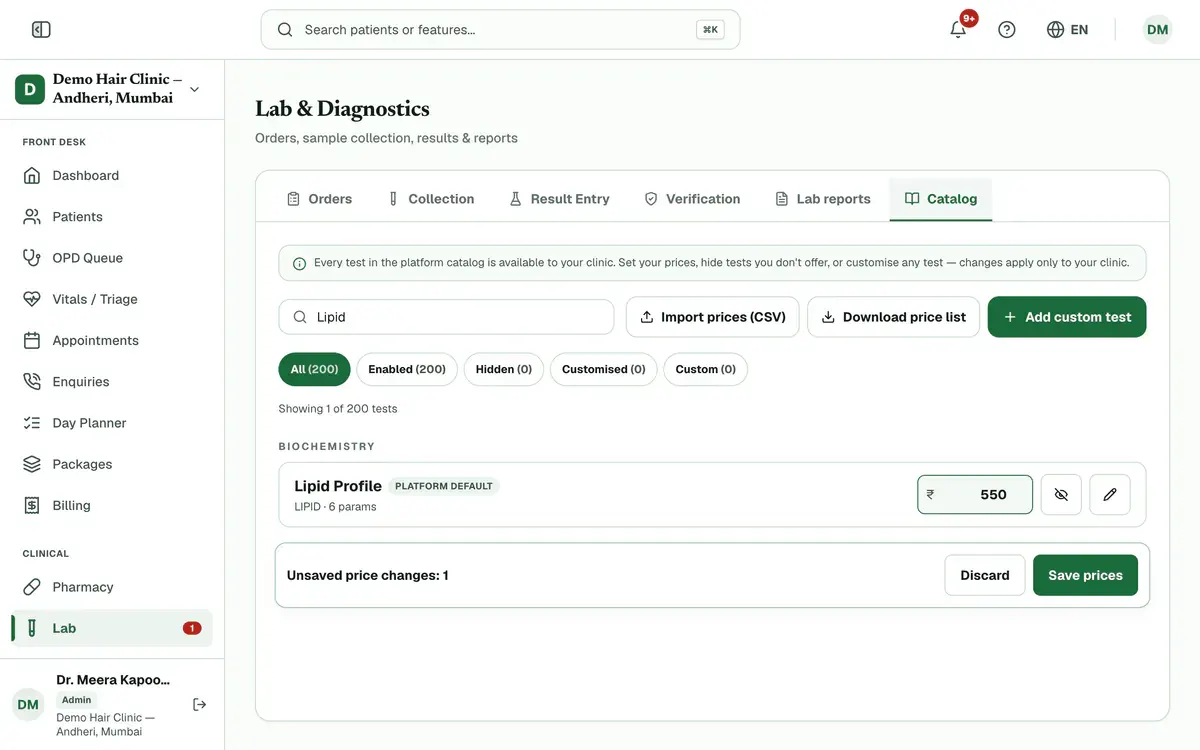
Step 4 of 7 Tip:To change many prices, press Import prices (CSV), check the prices it loads, then save. Download price list gives you a file to start from.
Press Hide from catalog on a test your lab does not do.
Tip:Press Show in catalog to bring it back.
Press Add custom test, enter the name, price and parameters, then press Create.
Tip:For each parameter, add its unit and reference ranges.
Careful:Add the normal ranges before you report a custom test. A test with no range shows Range not set.
Press the pencil on any test to change its details for your clinic.
Tip:On a changed platform test, Reset to platform default brings back the platform settings.
If something goes wrong
Do I have to add every test myself?
No. Every test in the platform catalog is already available to your clinic. You only set prices, hide tests you do not offer, or add tests of your own.
Do my changes affect other clinics?
No. Changes to a platform test apply only to your clinic. Anything you do not change keeps following the platform catalog.
Where do I turn on auto-release or set the report footer?
Open Settings and choose Lab / diagnostics. There you can switch on auto-release of results and set the text printed at the bottom of every lab report.
Related guides
Act on a critical result
A number badge on Lab counts critical results waiting for review. Press Lab to open Orders showing only those orders. Open one, read the flagged values and tell the ordering doctor. A doctor or admin then verifies the result in Verification, and the count goes down.
3 minIncluded in Nursing Home and aboveCollect a sample
Open Lab and choose Collection. Find the patient’s order, print a label for each tube and take the sample. Press Collect, and some tests ask you to confirm details such as fasting first. When the sample reaches the lab, press Receive. Press Reject with a reason if it is unusable.
3 minIncluded in Nursing Home and aboveEnter lab results
Open Lab and choose Result Entry. Find the patient’s test and press Enter results. Type each value. A badge shows High, Low or Critical when a value leaves the normal range. Add an interpretation if needed and press Save. The saved test leaves your list.
4 minIncluded in Nursing Home and above
Was this guide helpful?
Last updated 23 Oct 2026By the Clinizy Care product teamSee the feature page