
Set up your radiology catalogue
- Admin and clinic owner
Short answer
In Clinizy Care, open Radiology and choose Studies & prices. Press Add study for a new study, or the pencil to edit one. Enter its price and GST, add patient preparation and report templates, and save. Then open Rooms & sign-off to set each room’s hours and slot length.
Before you start
- Know your study names, prices and GST rates.
- Know how patients should prepare, such as fasting or a full bladder.
- Know your room hours and how long each slot lasts.
Steps
Open Radiology and choose Studies & prices.
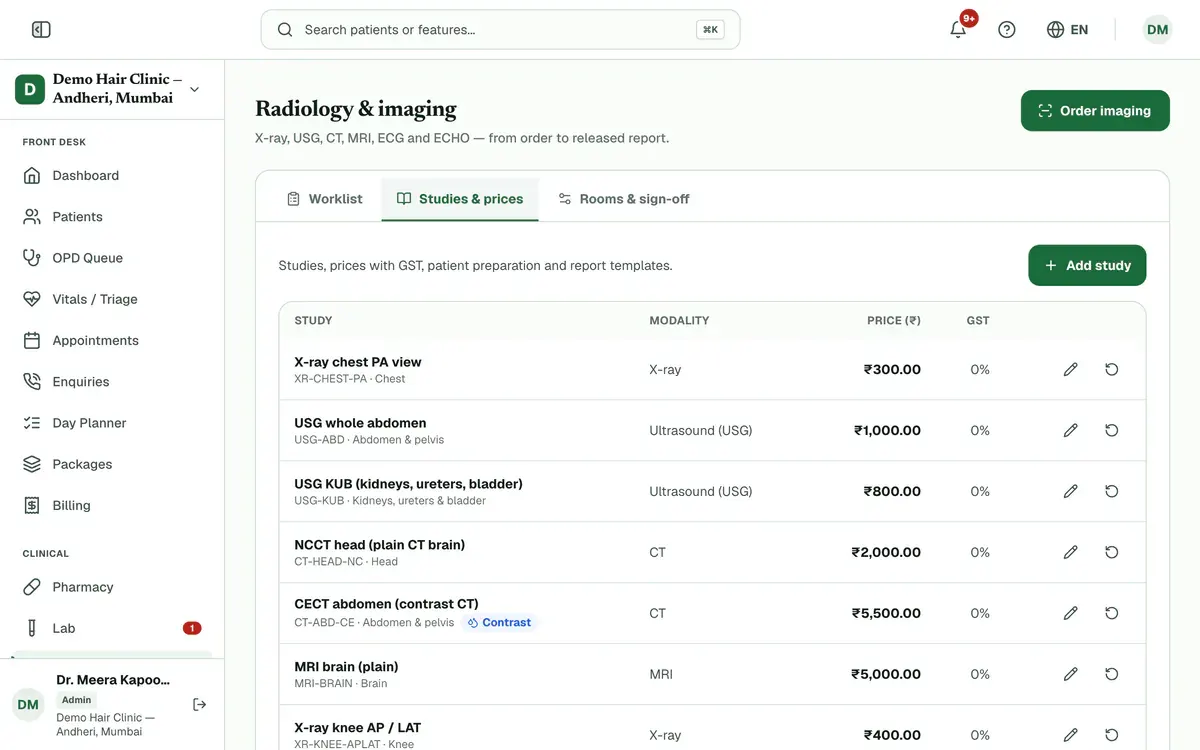
Step 1 of 8 Tip:By default, only an admin sees this tab.
Press Add study for a new study, or press the pencil on a row to edit one.
Enter the code, the study name and the price, then choose the modality and the GST rate.
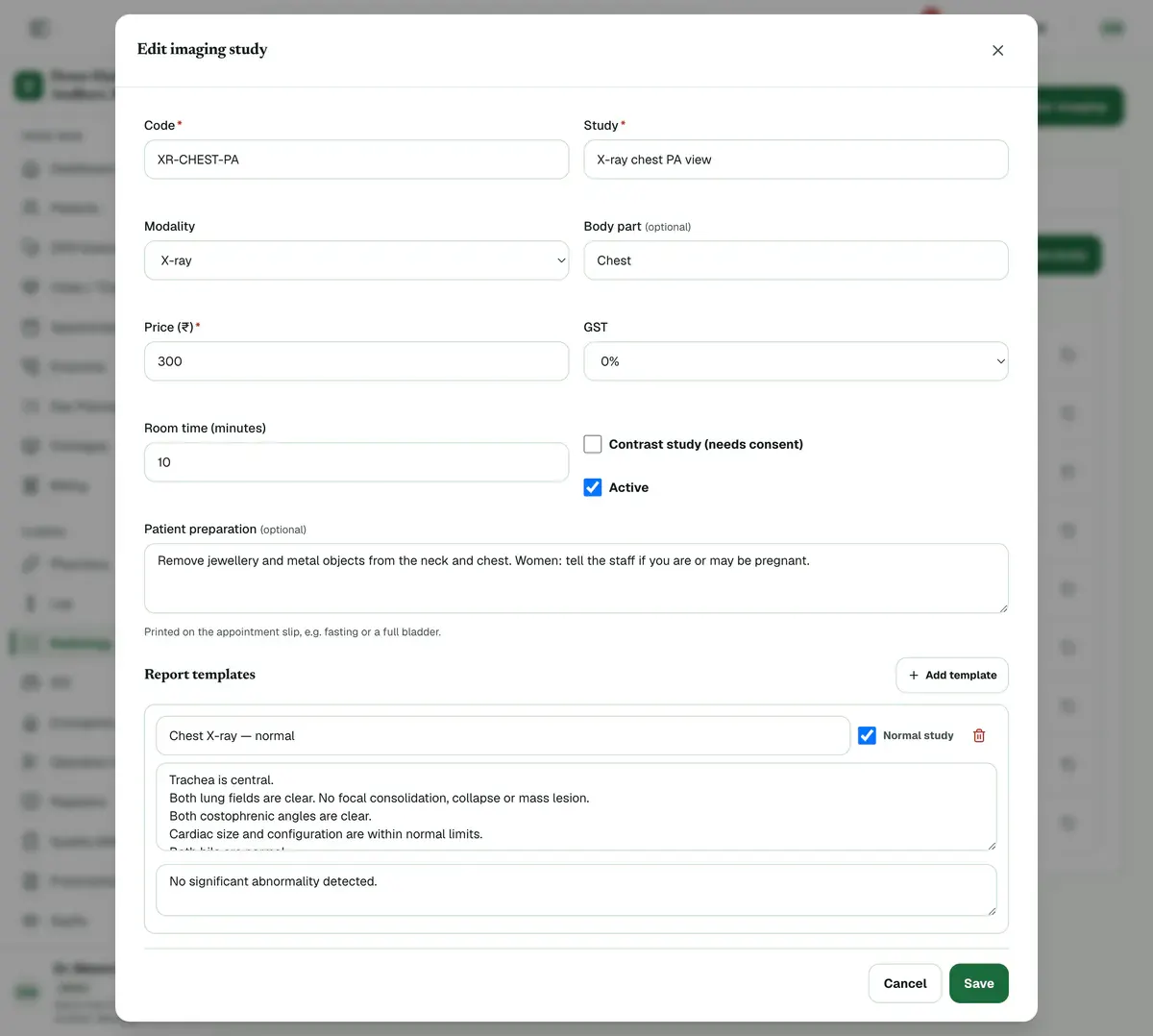
Step 3 of 8 Careful:The code of an existing study cannot be changed.
Write the patient preparation, such as fasting or a full bladder.
Tip:It prints on the appointment slip.
Tick Contrast study (needs consent) for a study that uses contrast.
Press Add template, name the template and write its findings and impression.
Tip:Tick Normal study for the normal report. It is offered first when reporting.
Press Save.
Tip:A standard study has a reset button that brings back the default name, preparation and templates. Your price is kept.
Open Rooms & sign-off, set each room’s opening hours and slot length, then press Save.
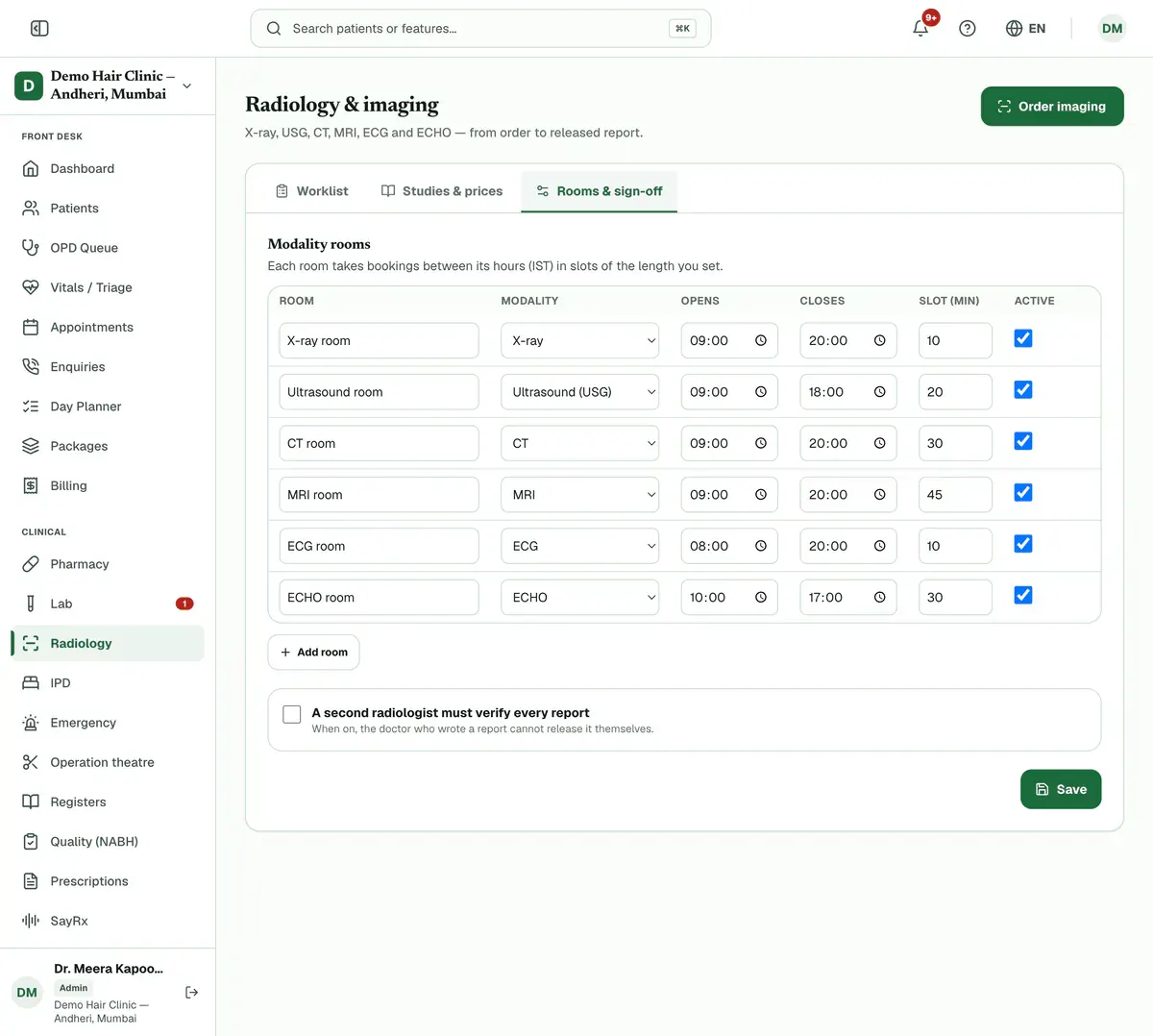
Step 8 of 8
If something goes wrong
What does the second verifier setting do?
In Rooms & sign-off, one switch makes a second radiologist verify every report. When it is on, the doctor who wrote a report cannot release it.
Can I switch a study off without deleting it?
Yes. Untick Active on the study. It stays in your list, marked as Switched off.
Can I get back the original study details?
Yes, for standard studies. Press the reset arrow on the row. The name, preparation and report templates go back to the default, and your price is kept.
Related guides
Report a radiology study
Open Radiology and pick the study from the worklist. Mark the patient arrived, start imaging and mark it done. Write the Findings and Impression, using a template if you like, then press Submit report. Finally press Verify & release. After release, any change is added as an addendum.
6 minIncluded in Nursing Home and aboveAct on a critical result
A number badge on Lab counts critical results waiting for review. Press Lab to open Orders showing only those orders. Open one, read the flagged values and tell the ordering doctor. A doctor or admin then verifies the result in Verification, and the count goes down.
3 minIncluded in Nursing Home and aboveCollect a sample
Open Lab and choose Collection. Find the patient’s order, print a label for each tube and take the sample. Press Collect, and some tests ask you to confirm details such as fasting first. When the sample reaches the lab, press Receive. Press Reject with a reason if it is unusable.
3 minIncluded in Nursing Home and above
Was this guide helpful?
Last updated 23 Oct 2026By the Clinizy Care product team