
Use the owner dashboard
- Admin and clinic owner
Short answer
In Clinizy Care, open Analytics to see your clinic at a glance. The cards add up visits, money and team for the dates you choose, such as 7D, 30D, 90D or 12M. Check the top doctors, then open the Team tab to compare your team and press a row for one person’s numbers.
Before you start
- Sign in as the clinic admin. Other roles cannot open this page.
- Decide which dates you want to look at.
Steps
Open Analytics from the left menu.
Read the cards at the top. They add up visits, patients, money and staff for your dates.
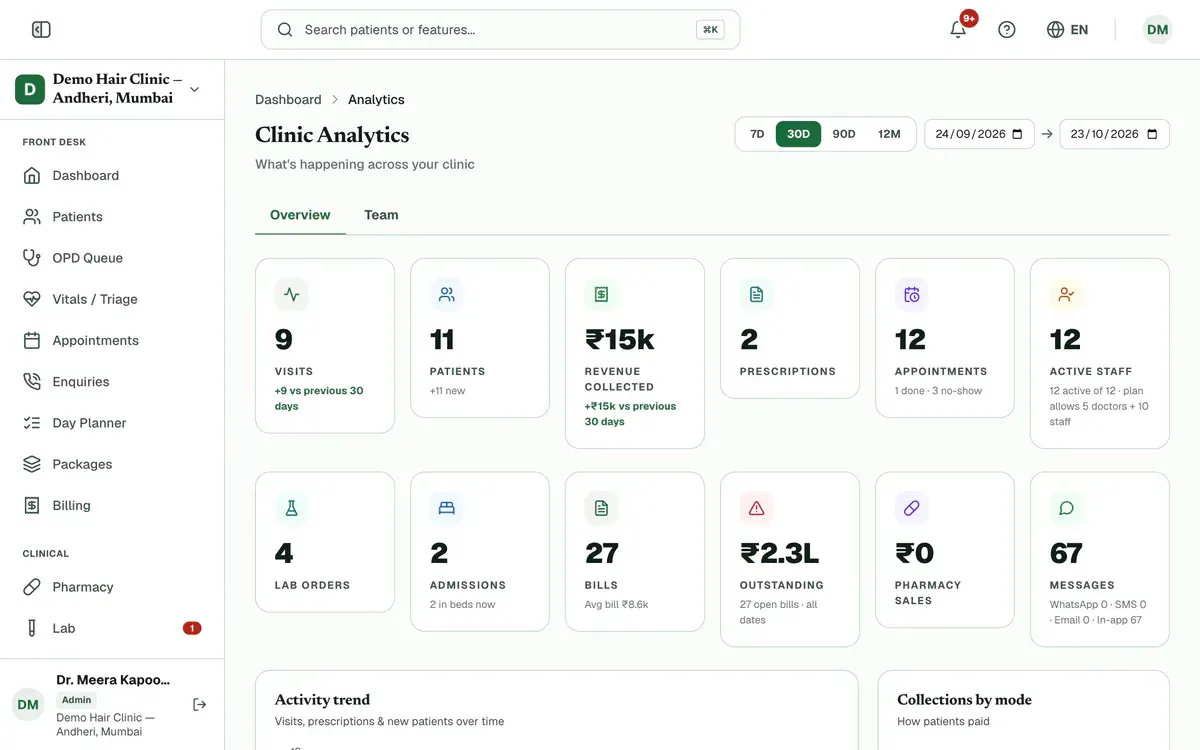
Step 2 of 7 Tip:Many cards show the change from the period before. Lab, IPD and Pharmacy cards appear only if your clinic has those modules.
Choose 7D, 30D, 90D or 12M, or set your own dates. Every card and chart updates.
Scroll down for the activity trend, collections by payment mode and revenue by service.
Check Top doctors. Doctors are ranked by the money collected on their bills.
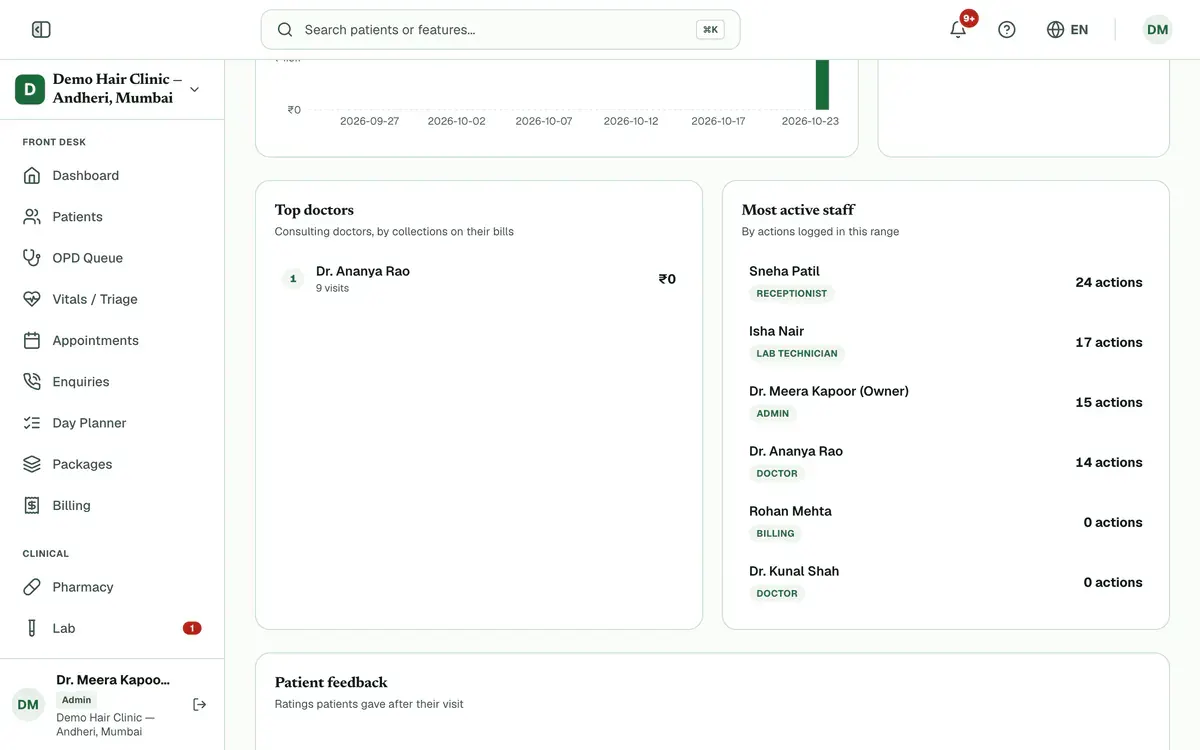
Step 5 of 7 Tip:Press a name to open that doctor’s details.
Open the Team tab. It lists every team member with visits, bills and collections.
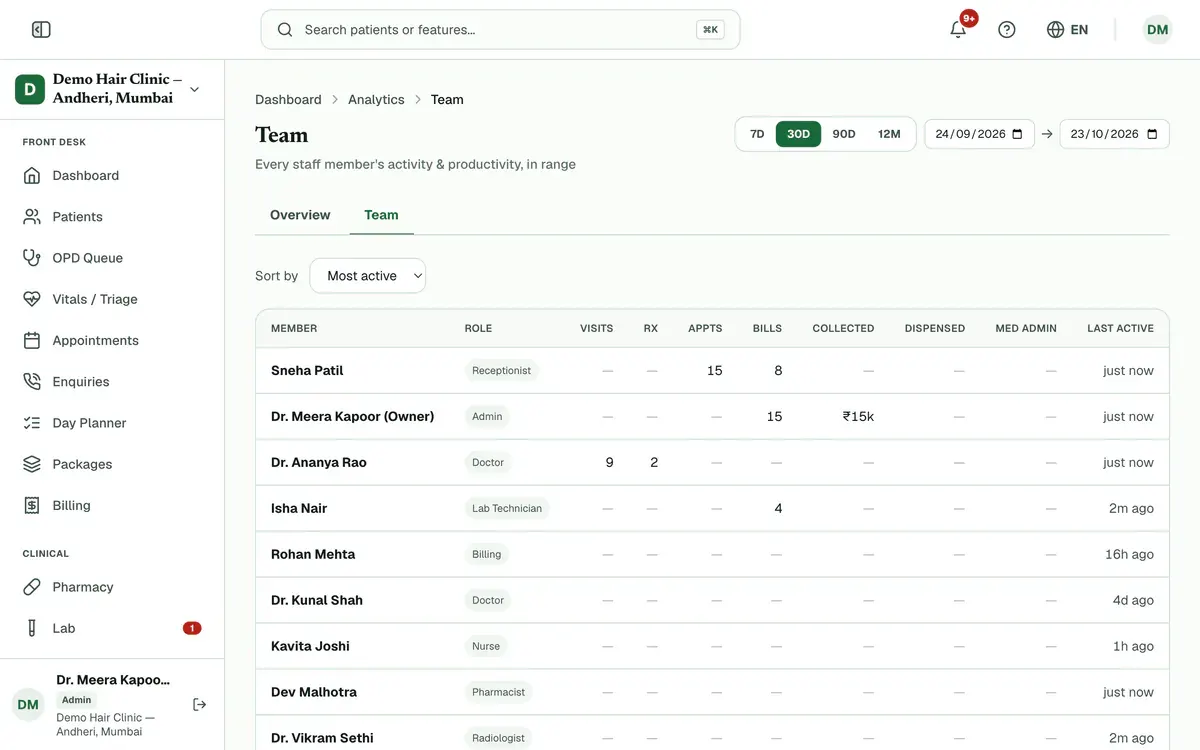
Step 6 of 7 Tip:Use Sort by to rank people by most active, visits, collected or name.
Press a row to see that person’s trends and a full breakdown.
If something goes wrong
Who can see Clinic Analytics?
Only the clinic admin. It is not tied to your plan, so every admin gets it.
Why is a card missing?
Cards appear only for the modules your clinic has. For example, the Admissions card needs IPD.
What does the Outstanding card show?
It shows all open dues from Billing, from any date. The dates you pick do not change it.
Related guides
Compare collections and revenue
Open Reports and set your dates. Three panels sit under the report buttons. Day-end Collections shows money received and refunded. Revenue reconciliation checks revenue against the payment ledger. Period-over-period compares your dates with the days right before. Your role and plan decide which panels you see.
5 minIncluded in Nursing Home and aboveManage add-ons
Open Settings and press Add-ons. See how many branches and doctor and staff seats you use. Choose the extra ones you need with the plus button, check the total and pay securely online. The add-on switches on as soon as the payment is confirmed.
4 minIncluded in Clinic and aboveManage attendance and shifts
Open Attendance and create your shifts first. Then give each person a weekly pattern in Roster, check and correct each day in Register, and approve or reject requests in Leave Approvals. Use Summary for monthly totals and a CSV file.
5 minIncluded in Clinic and above
Was this guide helpful?
Last updated 23 Oct 2026By the Clinizy Care product teamSee the feature page