
Verify and release a report
- Admin and clinic owner
- Doctor
Short answer
In Clinizy Care, open Lab and choose Verification. Check each value against its reference range, then press Verify, or Reject back with a reason. When every test in an order is verified, open it in Orders, press Release report and send the report to the patient.
Before you start
- The results must already be entered.
- Only a doctor or admin can verify and release.
Steps
Open Lab from the left menu and choose Verification.
Tip:To see only the orders you placed, use Ordered by me.
Check each value against its reference range. Flagged values need extra care.
Press Verify if the result is right.
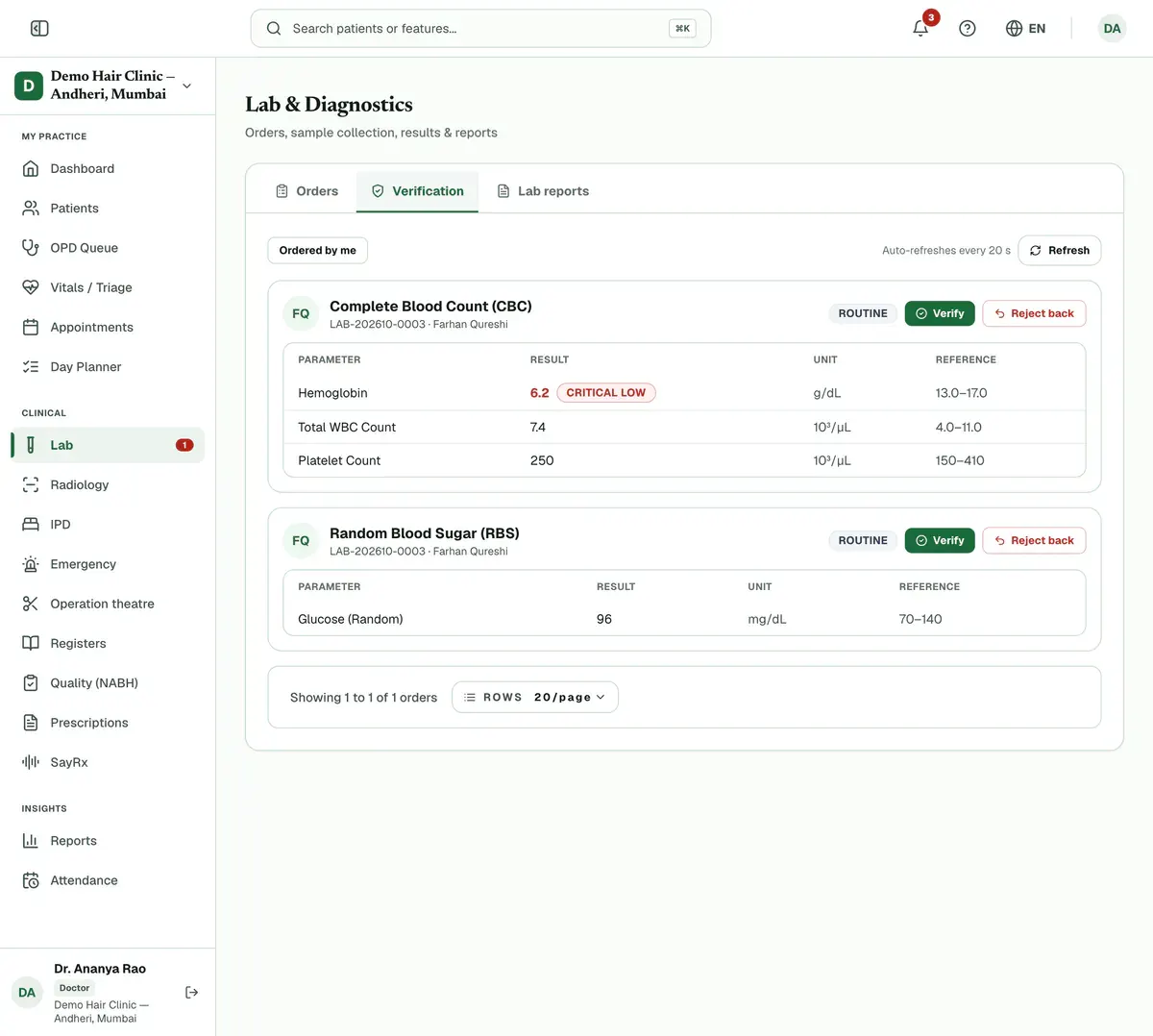
Step 3 of 7 Press Reject back and give a reason if the result needs another look.
Careful:The reason is required.
Open the order in Orders once all its tests are verified.
Press Release report.
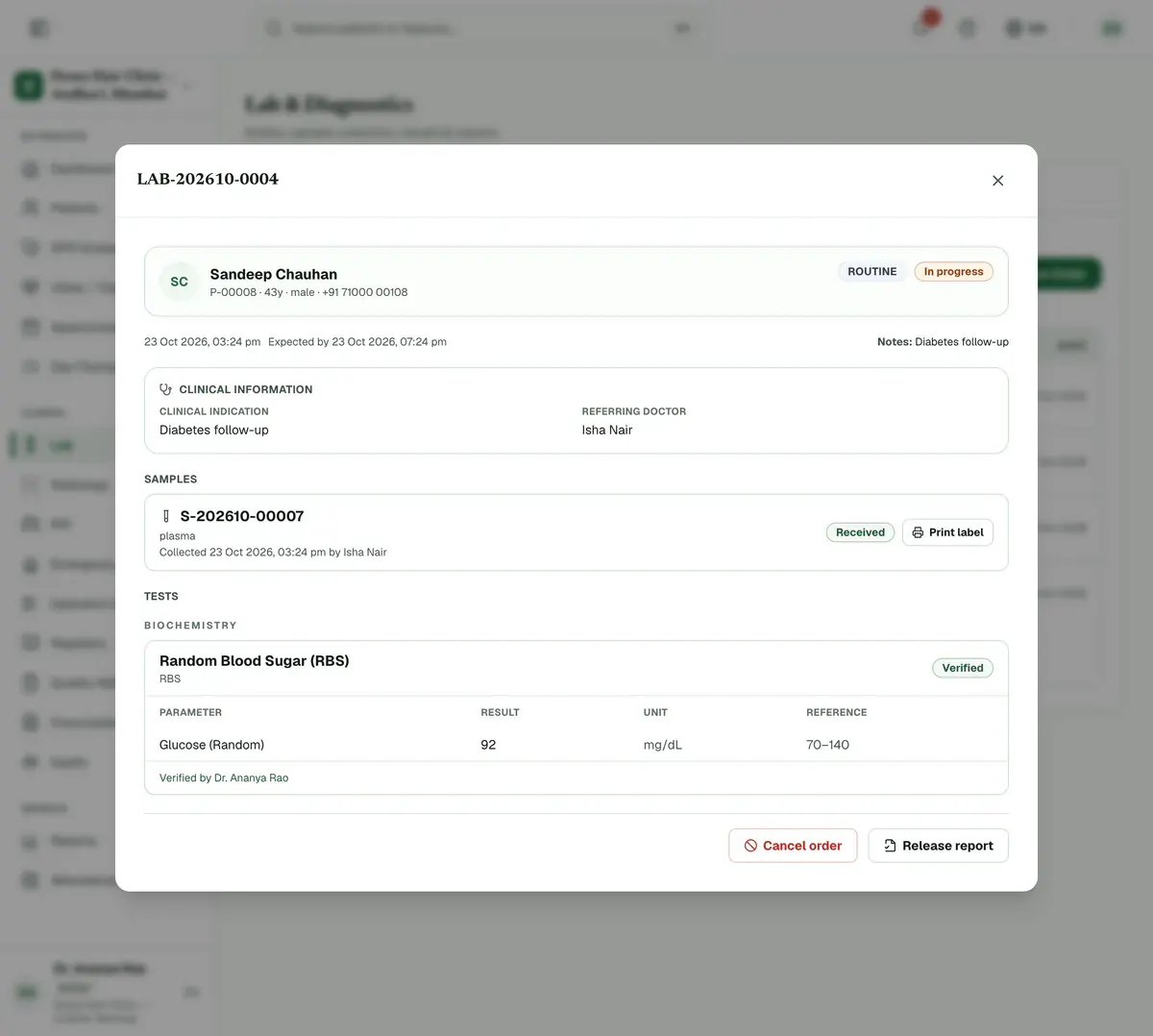
Step 6 of 7 Careful:The button shows only when every active test in the order is verified.
Press Print, WhatsApp or Email to give the report to the patient.
Tip:You can also press Download report to open the PDF.
If something goes wrong
Why is the Verification tab empty?
Either no result is waiting, or your clinic uses auto-release, which verifies results as they are saved. A critical result still waits here for you.
What if the patient opted out of WhatsApp?
Clinizy Care tells you and sends nothing. Print the report, save the PDF or send it by email instead.
Can I send the report again?
Yes. Open Lab reports, find the order and press Resend. You can download it from there too.
Related guides
Act on a critical result
A number badge on Lab counts critical results waiting for review. Press Lab to open Orders showing only those orders. Open one, read the flagged values and tell the ordering doctor. A doctor or admin then verifies the result in Verification, and the count goes down.
3 minIncluded in Nursing Home and aboveCollect a sample
Open Lab and choose Collection. Find the patient’s order, print a label for each tube and take the sample. Press Collect, and some tests ask you to confirm details such as fasting first. When the sample reaches the lab, press Receive. Press Reject with a reason if it is unusable.
3 minIncluded in Nursing Home and aboveEnter lab results
Open Lab and choose Result Entry. Find the patient’s test and press Enter results. Type each value. A badge shows High, Low or Critical when a value leaves the normal range. Add an interpretation if needed and press Save. The saved test leaves your list.
4 minIncluded in Nursing Home and above
Was this guide helpful?
Last updated 23 Oct 2026By the Clinizy Care product teamSee the feature page